This section mainly introduces the programming environment of Excel VBA and explains how to write Excel VBA programs with simple examples.
Programming Environment of Excel VBA
This book uses Excel 2016 as an example to explain Excel VBA programming. To program in Excel VBA, you need to load the Developer tab first. If your Excel 2016 does not have this tab, follow these steps to load it:
Click the File dropdown button, then select the bottom Options command in the left sidebar to open the dialog box (Figure 1-1).
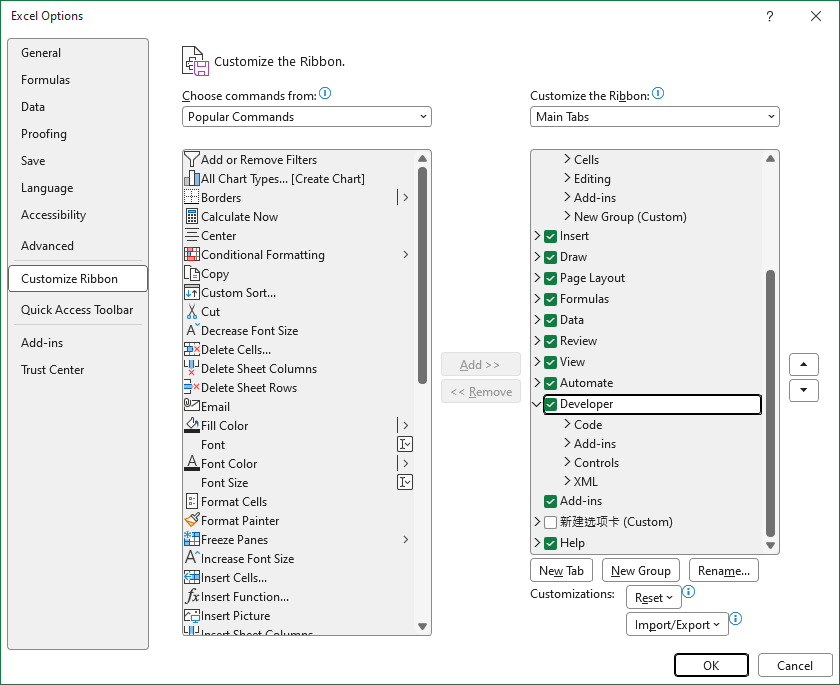
Figure 1-1
In the dialog box, click the Customize Ribbon link in the left sidebar to open the Customize Ribbon panel.
Check the Developer checkbox in the right list box.
Click OK. The Developer tab will appear in the Excel main interface (Figure 1-2).
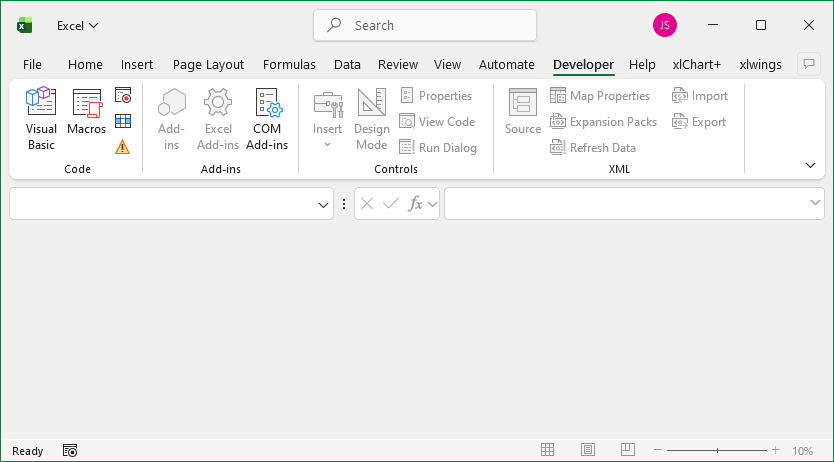
Figure 1-2
The Developer tab has four functional sections: Code, Add-ins, Controls, and XML. We mainly use the Code section. Click the Visual Basic button to open the Excel VBA programming environment (Figure 1-3).
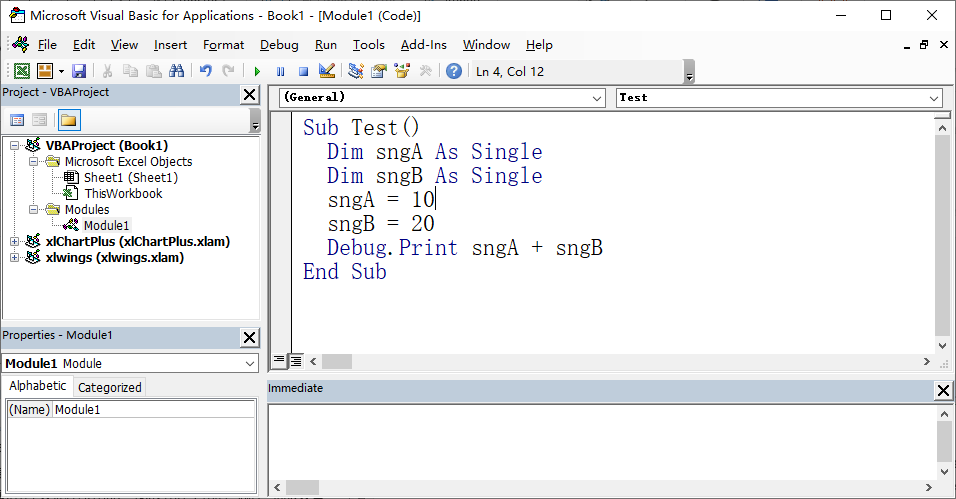
Figure 1-3
In the Excel VBA environment:
Use commands in the Insert menu to add user forms, modules, and class modules, or existing module files.
User form modules are used to design program interfaces; set properties of forms and controls via the Properties panel at the bottom left.
Modules are used to add variables, procedures, and functions.
Class modules are used to add class code.
Insert a module: the blank area on the right is the code editor, where you can input, edit, and debug code.
Use commands in the Debug menu for program debugging.
Writing Excel VBA Programs
Below is a simple function to calculate the sum of two numbers. Open the Excel VBA environment, select Insert → Module to add a module, and input the following code (sample file path: Samples\ch01\Excel VBA\VBA.xlsm).
Function MySum(sngX As Single, sngY As Single) As Single
    ' Calculate the sum of two real numbers
    MySum = sngX + sngY
End Function
This function implements a simple addition operation. Continue adding a Test procedure to call MySum and output results in the Immediate Window:
Sub Test()
    Debug.Print MySum(2, 6)  ' Call the function to calculate the sum of 2 and 6
End Sub
Click anywhere in the Test procedure, then click the triangle button on the toolbar to run it. The sum of 2 and 6 (i.e., 8) will be output in the Immediate Window.