When outputting data such as numbers, strings, and dates, it is often necessary to display them in a specified format. This section introduces string formatting output.
Implementing String Formatting Output
[Excel VBA] In Excel VBA, the Format function is used for formatted string output. Its syntax is:
strA = Format(strString, strFormat)
strString: The original string.
strFormat: The format specification string.
strA: The formatted string.
Common formats for the Format function are listed in Table 6-4.
Table 6-4 Formats for the Format Function
Examples (sample file: Samples\ch06\Excel VBA\FormattedOutput.xlsm):
Sub Test()
    Debug.Print Format("7,294,269.60", "General Number")   ' 7294269.6
    Debug.Print Format("12.69", "0.0000")                 ' 12.6900
    Debug.Print Format("12.69", "#.####")                ' 12.69
    Debug.Print Format("1.269", "0.00%")                 ' 126.90%
    Debug.Print Format("12345.6098", "Currency")          ' ¥12,345.61
    Debug.Print Format("35267", "Fixed")                 ' 35267.00
    Debug.Print Format("7294269.609", "Standard")        ' 7,294,269.61
    Debug.Print Format("0.30", "Percent")                ' 30.00%
    Debug.Print Format("0", "Yes/No")                    ' No
    Debug.Print Format("2021-5-20 13:14:22", "General Date") ' 2021/5/20 13:14:22
    Debug.Print Format("2021-5-20 13:14:22", "Short Date")    ' 2021/5/20
    Debug.Print Format("2021-5-20 13:14:22", "Long Time")     ' 13:14:22
End Sub
[Python] When using print, specify formats with placeholders or the format function.
Basic Placeholder Syntax:
print('placeholder1 placeholder2' % (value1, value2))Common placeholders (Table 6-5):
Table 6-5 Common String Placeholders in Python
Examples:
>>> print('hello %s' % 'python')                     # hello python
>>> print('%s %s %d' % ('hello', 'python', 2021))     # hello python 2021
>>> print('%+10.5f' % 3.1415927)                     # +3.14159 (width 10, 5 decimals)
>>> print('%010.5f' % 3.1415927)                     # 0003.14159 (pad with zeros)
Using format Function: More flexible than % placeholders.
>>> print('Unspecified order: {} {}'.format('hello', 'python'))  # hello python
>>> print('Specified order: {1} {0}'.format('hello', 'python'))  # python hello
>>> print('Repeat: {0} {1} {0} {1}'.format('hello', 'python'))   # hello python hello python
>>> print('Float: {:.2f}'.format(3.1415))                      # 3.14
>>> print('Percentage: {:.3%}'.format(0.12))                   # 12.000%
>>> print('Named args: {name}, {age}'.format(age=30, name=';Zhang San'))  # Zhang San, 30
Example: Retain 4 Decimal Places
Given data in column B (Figure 6-2), retain 4 decimal places and output to column D.
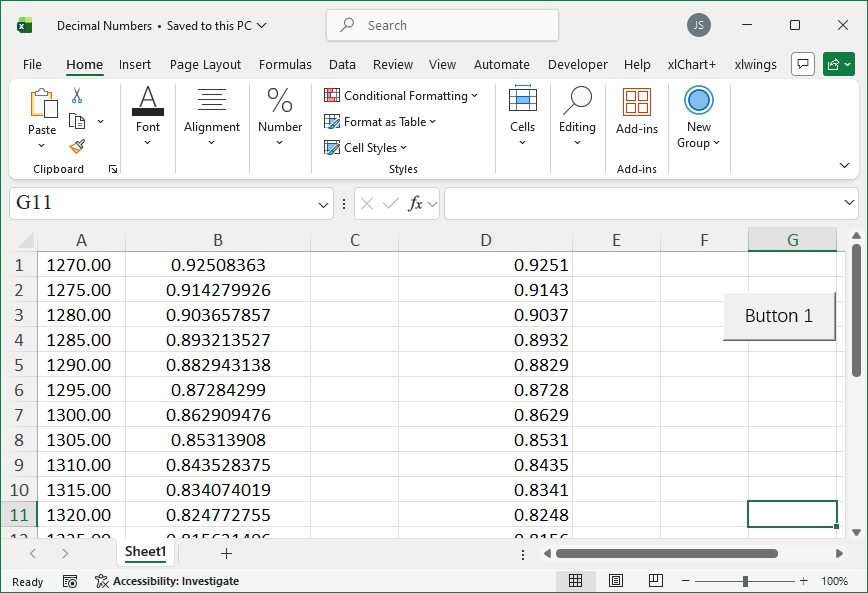
Figure 6-2
[Excel VBA] Use Format with "0.0000". Sample file: Samples\ch06\Excel VBA\Retain4Decimals.xlsm.
Sub Test()
    Dim intI As Integer, intRows As Integer
    Dim sngV As Single
    intRows = ActiveSheet.Range("B1").End(xlDown).Row
    For intI = 1 To intRows
        sngV = ActiveSheet.Cells(intI, 2).Value
        ActiveSheet.Cells(intI, 4).Value = Format(sngV, "0.0000")
    Next
End Sub
[Python] Use format with {:.4f}. Sample file: Samples\ch06\Python\Retain4Decimals.xlsx, script sam06-02.py.
class="text-secondary">import xlwings class="text-secondary">as xw
class="text-secondary">from xlwings.constants class="text-secondary">import Direction
class="text-secondary">import os
root = os.getcwd()
app = xw.App(visible=True, add_book=False)
bk = app.books.open(root + r'\Retain4Decimals.xlsx', read_only=False)
sht = bk.sheets(1)
rows = sht.api.Range('B1').End(Direction.xlDown).Row
n = 0
for rng in sht.range('B1:B' + str(rows)):
    n += 1
    sht.cells(n, 4).value = '{:.4f}'.format(rng.value)