Splitting a string by a delimiter or joining multiple strings with a delimiter is a common task.
Splitting Strings
[Excel VBA] Use the Split function (returns an array). Sample file: Samples\ch06\Excel VBA\SplitJoin.xlsm.
Sub Test()
    Dim strL As String, strArray() As String
    strL = "Hello python VBA"
    strArray = Split(strL, " ")  ' Split by space
    Debug.Print strArray(0)  ' Hello
    Debug.Print strArray(1)  ' python
    Debug.Print strArray(2)  ' VBA
End Sub
[Python] Use the split() method (returns a list).
>>> 'Hello python VBA'.split(' ')       # ['Hello', 'python', 'VBA']
>>> 'Hello python VBA'.split()          # Default: split by whitespace → ['Hello', 'python', 'VBA']
Example: Split Material Specifications
Column D contains material specifications in "length×width×height" format (Figure 6-4). Split into length, width, height (columns G, H, I).
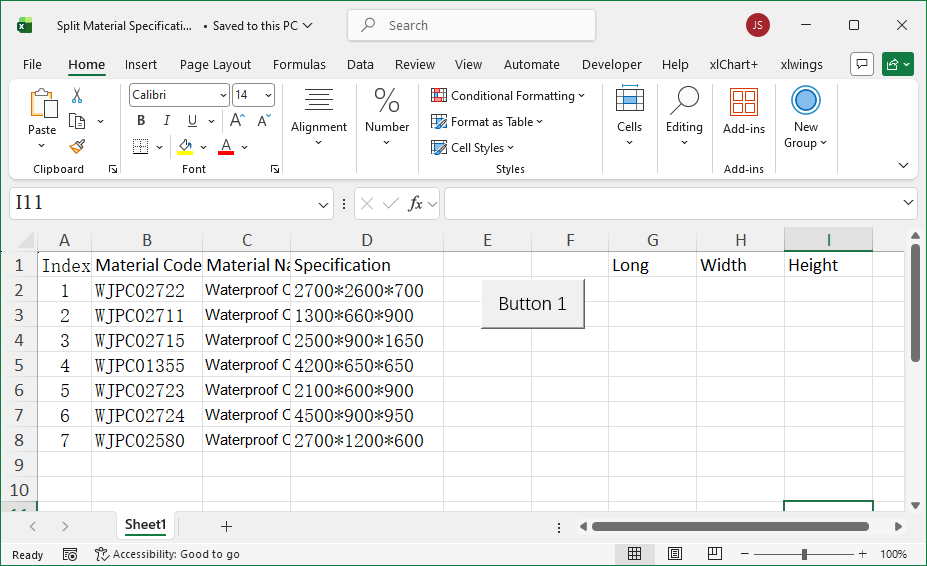
Figure 6-4
[Excel VBA] Use Split with "*". Sample file: Samples\ch06\Excel VBA\SplitMaterialSpec.xlsm.
Sub Test()
    Dim intI As Integer, intR As Integer
    Dim strT0 As String, strT() As String
    intR = ActiveSheet.Range("D1").End(xlDown).Row
    For intI = 2 To intR
        strT0 = ActiveSheet.Cells(intI, 4).Value
        strT = Split(strT0, "*")
        ActiveSheet.Cells(intI, 7).Value = CInt(strT(0))  ' length
        ActiveSheet.Cells(intI, 8).Value = CInt(strT(1))  ' width
        ActiveSheet.Cells(intI, 9).Value = CInt(strT(2))  ' height
    Next
End Sub
[Python] Use split('*'). Sample file: Samples\ch06\Python\SplitMaterialSpec.xlsx, script sam06-04.py.
class="text-secondary">import xlwings class="text-secondary">as xw
class="text-secondary">from xlwings.constants class="text-secondary">import Direction
class="text-secondary">import os
root = os.getcwd()
app = xw.App(visible=True, add_book=False)
bk = app.books.open(root + r'\SplitMaterialSpec.xlsx', read_only=False)
sht = bk.sheets(1)
rows = sht.api.Range('D1').End(Direction.xlDown).Row
n = 1
for rng in sht.range('D2:D' + str(rows)):
    n += 1
    lst = rng.value.split('*')
    sht.cells(n, 7).value = lst[0]  # length
    sht.cells(n, 8).value = lst[1]  # width
    sht.cells(n, 9).value = lst[2]  # height
Joining Strings
[Excel VBA] Use & (recommended) or + (avoid ambiguity). Use Join to join array elements with a delimiter.
Sub Test2()
    Dim strA As String, strB As String
    strA = "Hello"
    strB = "VBA"
    Debug.Print strA & " " & strB  ' Hello VBA
End Sub
Sub Test3()
    Dim strA As String, strB As String, strArr(1) As String
    strA = "Hello"
    strB = "VBA"
    strArr(0) = strA
    strArr(1) = strB
    Debug.Print Join(strArr, " ")  ' Hello VBA
End Sub
[Python] Use +, *, print with spaces, or join().
>>> a = 'hello '
>>> b = 'python'
>>> a + b                          # 'hello python'
>>> a * 3                          # 'python python python '
>>> print('hello ' 'python')       # 'hello python'
>>> ','.join(['hello', 'abc', 'python'])  # 'hello,abc,python'
Example: Merge Student Information
Merge columns A–C (name, gender, exam ID) into column D (Figure 6-5).
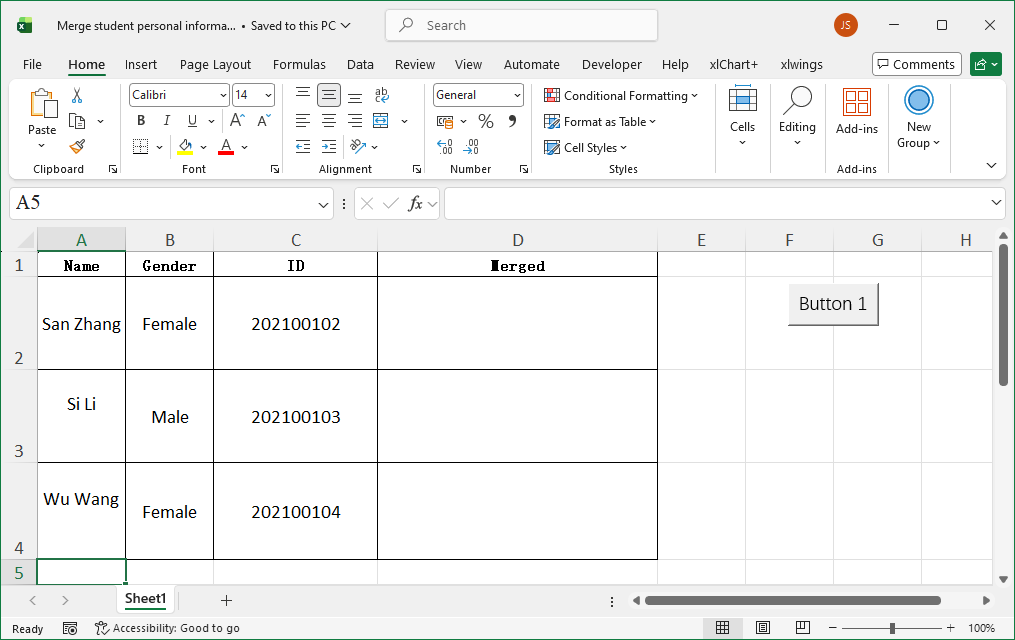
Figure 6-5
[Excel VBA] Use Join with vbLf (newline). Sample file: Samples\ch06\Excel VBA\MergeStudentInfo.xlsm.
Sub Test()
    Dim intI As Integer, intR As Integer
    Dim strT(2) As String
    intR = ActiveSheet.Range("A1").End(xlDown).Row
    For intI = 2 To intR
        strT(0) = "Name: " & ActiveSheet.Cells(intI, 1).Value
        strT(1) = "Gender: " & ActiveSheet.Cells(intI, 2).Value
        strT(2) = "Exam ID: " & ActiveSheet.Cells(intI, 3).Value
        ActiveSheet.Cells(intI, 4).Value = Join(strT, vbLf)
    Next
End Sub
[Python] Use '\n'.join(). Sample file: Samples\ch06\Python\MergeStudentInfo.xlsx, script sam06-05.py.
class="text-secondary">import xlwings class="text-secondary">as xw
class="text-secondary">from xlwings.constants class="text-secondary">import Direction
class="text-secondary">import os
root = os.getcwd()
app = xw.App(visible=True, add_book=False)
bk = app.books.open(root + r'\MergeStudentInfo.xlsx', read_only=False)
sht = bk.sheets(1)
rows = sht.api.Range('A1').End(Direction.xlDown).Row
for i in range(2, rows + 1):
    lst = [
        'Name: ' + str(sht.cells(i, 1).value),
        'Gender: ' + str(sht.cells(i, 2).value),
        'Exam ID: ' + str(sht.cells(i, 3).value)
    ]
    sht.cells(i, 4).value = '\n'.join(lst)