To help readers consolidate the content of this chapter, this section provides 3 examples related to functions and gives code in both Excel VBA and Python versions.
Application Example 1: Calculate the Area of a Circular Ring
As shown in Figure 10-2, columns C and D of the worksheet contain the outer and inner radius data of each circular ring. Now, use the data to calculate the area of each circular ring. The formula for calculating the area of a circular ring is
, where
is pi, and
and
are the outer and inner radii of the circular ring, respectively.
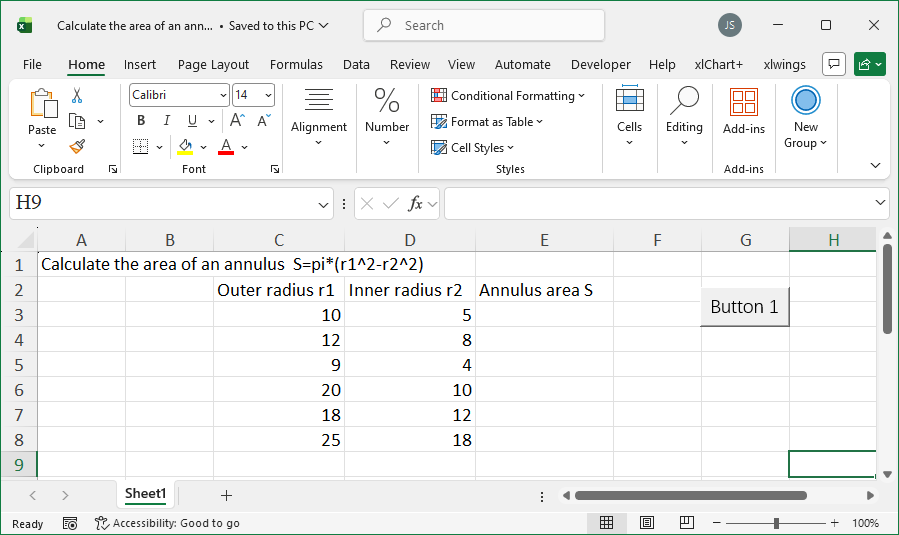
Figure 10-2 Calculate the Area of a Circular Ring
Before calculating the area of each circular ring, we need to first write the area calculation formula as a function so that it can be called repeatedly to calculate the area for each circular ring.
【Excel VBA】
The sample file path is Samples\ch10\Excel VBA\CalculateCircularRingArea.xlsm.
Function CircleArea(dblR1 As Double, dblR2 As Double) As Double
    ' Calculate the area of a circular ring
    ' dblR1 is the outer radius, dblR2 is the inner radius
    CircleArea = 3.1416 * (dblR1 * dblR1 - dblR2 * dblR2)
End Function
Sub Test()
    Dim intI As Integer
    Dim intR As Integer   ' Maximum row number of data
    Dim intL As Integer, intU As Integer
    Dim dblR1(), dblR2(), dblArea()   ' Outer radius, inner radius, area
    Dim sht As Object
    Set sht = ActiveSheet

    intR = sht.Range("C2").End(xlDown).Row

    ' Get data and convert to a one-dimensional array
    dblR1 = sht.Range("C3:C" & CStr(intR)).Value
    dblR1 = Application.WorksheetFunction.Transpose(dblR1)
    dblR2 = sht.Range("D3:D" & CStr(intR)).Value
    dblR2 = Application.WorksheetFunction.Transpose(dblR2)

    intL = LBound(dblR1)
    intU = UBound(dblR1)
    ReDim dblArea(intL To intU)

    ' Call the function to calculate the area of each circular ring
    For intI = intL To intU
        dblArea(intI) = CircleArea(CDbl(dblR1(intI)), CDbl(dblR2(intI)))
    Next

    ' Output the result
    sht.Range("E3").Resize(intU - intL + 1, 1).Value = _
        Application.WorksheetFunction.Transpose(dblArea)
End Sub
Running the program outputs the area of each circular ring in column E of the worksheet.
【Python】
The sample data file path is Samples\ch10\Python\CalculateCircularRingArea.xlsx, and the .py file is saved in the same directory with the filename sam10-01.py.
def circle_area(r1, r2):
    "Calculate the area of a circular ring"
    "r1 is the outer radius, r2 is the inner radius"
    return 3.1416 * (r1 * r1 - r2 * r2)
class="text-secondary">import xlwings class="text-secondary">as xw   # Import the xlwings package
class="text-secondary">from xlwings.constants class="text-secondary">import Direction  # Import Direction class="text-secondary">from the constants class
class="text-secondary">import os   # Import the os package
# Get the current path of the .py file
root = os.getcwd()
# Create an Excel application (visible, no workbook)
app = xw.App(visible=True, add_book=False)
# Open the data file (writable)
bk = app.books.open(fullname=root + r'\CalculateCircularRingArea.xlsx', read_only=False)
sht = bk.sheets(1)  # Get the first worksheet
# Maximum row number of data in column C of the worksheet
row_num = sht.api.Range('C2').End(Direction.xlDown).Row
areas = []
# Call the function to calculate the area of each circular ring and add the result to the list
for i in range(row_num - 2):
    areas.append(circle_area(sht.cells(i + 3, 3).value, sht.cells(i + 3, 4).value))
# Output the result
sht.range('E3').options(transpose=True).value = areas
Running the program outputs the area of each circular ring in column E of the worksheet.
Application Example 2: Recursively Calculate Factorial
As shown in Figure 10-3, column C of the worksheet gives integers 1–10. Now, calculate their respective factorials and output them to column D.
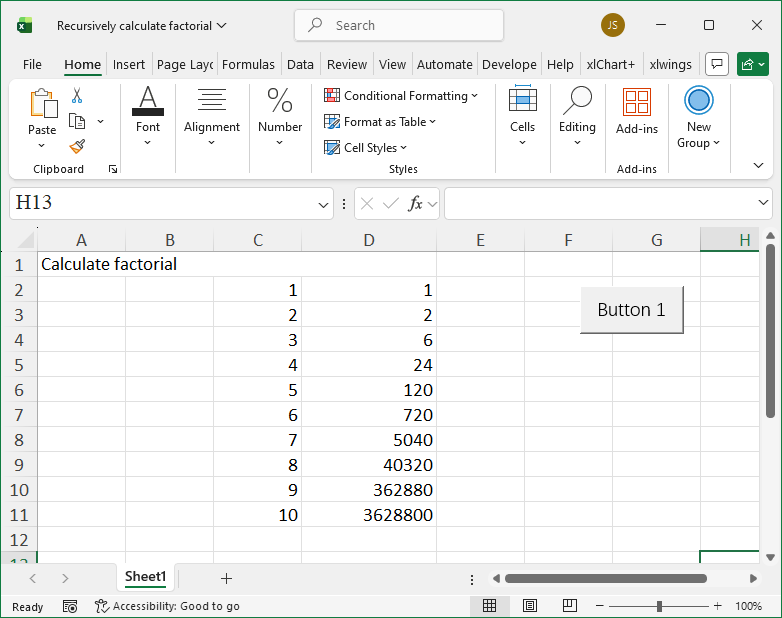
Figure 10-3 Calculate the Factorial of a Given Integer
Before calculation, we first need to construct a function to calculate the factorial of a specified integer. The factorial of an integer
(
) can be regarded as the product of
and the factorial of
, i.e.,
, and the factorial of
can be regarded as the product of
and the factorial of
, i.e.,
, and so on. This can be calculated using a recursive algorithm.
【Excel VBA】
First, construct the recursive function Factorial, then iterate over each integer in column C and call the function to calculate the factorial. The sample file path is Samples\ch10\Excel VBA\RecursiveFactorial.xlsm.
Function Factorial(lngN As Long) As Long
    ' Recursively calculate the factorial of lngN
    If lngN > 1 And lngN <= 20 Then
        Factorial = lngN * Factorial(lngN - 1)
    Else
        Factorial = 1
    End If
End Function
Sub Test()
    Dim intI As Integer
    Dim intR As Integer   ' Maximum row number of data
    Dim intL As Integer, intU As Integer
    Dim lngN(), lngV()   ' Given numbers and their factorials
    Dim sht As Object
    Set sht = ActiveSheet

    intR = sht.Range("C2").End(xlDown).Row

    ' Get data and convert to a one-dimensional array
    lngN = sht.Range("C2:C" & CStr(intR)).Value
    lngN = Application.WorksheetFunction.Transpose(lngN)

    intL = LBound(lngN)
    intU = UBound(lngN)
    ReDim lngV(intL To intU)

    ' Call the function to calculate factorials
    For intI = intL To intU
        lngV(intI) = Factorial(CLng(lngN(intI)))
    Next

    ' Output the result
    sht.Range("D2").Resize(intU - intL + 1, 1).Value = _
        Application.WorksheetFunction.Transpose(lngV)
End Sub
Running the program outputs the factorial of each integer in column D of the worksheet.
【Python】
First, construct the recursive function factorial, then iterate over each integer in column C and call the function to calculate the factorial. The sample data file path is Samples\ch10\Python\RecursiveFactorial.xlsx, and the .py file is saved in the same directory with the filename sam10-02.py.
def factorial(n):
    "Calculate the factorial of integer n"
    if n == 1:
        return 1
    return n * factorial(n - 1)
class="text-secondary">import xlwings class="text-secondary">as xw   # Import the xlwings package
class="text-secondary">from xlwings.constants class="text-secondary">import Direction  # Import Direction class="text-secondary">from the constants class
class="text-secondary">import os   # Import the os package
# Get the current path of the .py file
root = os.getcwd()
# Create an Excel application (visible, no workbook)
app = xw.App(visible=True, add_book=False)
# Open the data file (writable)
bk = app.books.open(fullname=root + r'\RecursiveFactorial.xlsx', read_only=False)
sht = bk.sheets(1)  # Get the first worksheet
# Maximum row number of data in column C of the worksheet
row_num = sht.api.Range('C2').End(Direction.xlDown).Row
lst = []
# Call the function to calculate the factorial of each integer and add the result to the list
for i in range(row_num - 1):
    lst.append(factorial(sht.cells(i + 2, 3).value))
# Output the result
sht.range('D2').options(transpose=True).value = lst
Running the program outputs the factorial of each integer in column D of the worksheet.
Application Example 3: Remove Numbers from a String
As shown in Figure 10-4, column C of the worksheet gives some strings composed of letters and numbers. Now, remove the numbers from these strings.
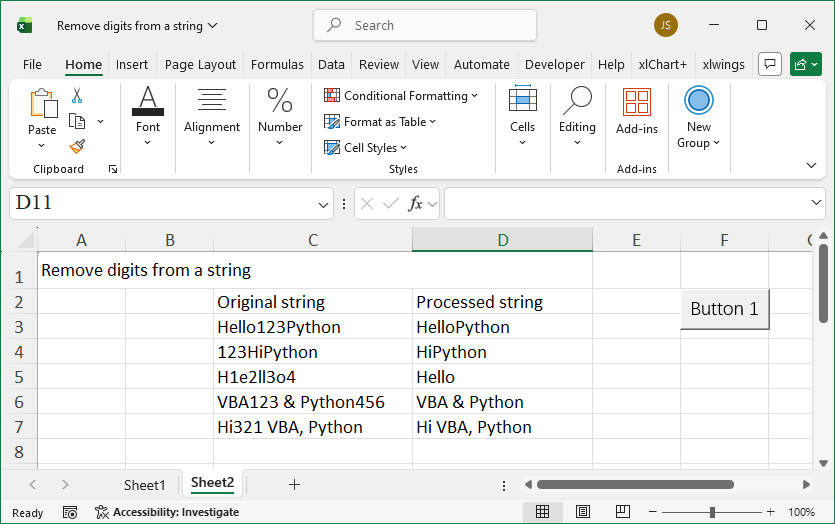
Figure 10-4 Remove Numbers from a String
Before processing these strings, we first need to construct a function to remove numbers from a string. The ASCII codes of digits are 48–57. Iterate over each character in the string, obtain the ASCII code of the current character, and if it falls within the range 48–57, remove it; otherwise, retain it.
【Excel VBA】
First, construct the function DelNumers to remove numbers from a string, then iterate over each string in column C and repeatedly call the DelNumers function for processing. In Excel VBA, the Asc function is used to obtain the ASCII code of a character. The sample file path is Samples\ch10\Excel VBA\RemoveNumbersFromString.xlsm.
Function DelNumers(strOri As String)
    Dim strChar As String
    Dim strTemp As String
    Dim intI As Integer
    strTemp = ""

    ' Iterate over each character in the string
    For intI = 1 To Len(strOri)
        strChar = Mid(strOri, intI, 1)
        ' ASCII codes of digits are 48–57
        ' If not in this range, add the character; otherwise, ignore
        If Asc(strChar) < 48 Or Asc(strChar) > 57 Then
            strTemp = strTemp & strChar
        End If
    Next
    DelNumers = strTemp
End Function
Sub Test()
    Dim intI As Integer
    Dim intR As Integer
    Dim intL As Integer, intU As Integer
    Dim strV(), strR()
    Dim sht As Object
    Set sht = ActiveSheet

    intR = sht.Range("C2").End(xlDown).Row

    ' Get data and convert to a one-dimensional array
    strV = sht.Range("C3:C" & CStr(intR)).Value
    strV = Application.WorksheetFunction.Transpose(strV)

    intL = LBound(strV)
    intU = UBound(strV)
    ReDim strR(intL To intU)

    ' Call the function to remove numbers
    For intI = intL To intU
        strR(intI) = DelNumers(CStr(strV(intI)))
    Next

    ' Output the result
    sht.Range("D3").Resize(intU - intL + 1, 1).Value = _
        Application.WorksheetFunction.Transpose(strR)
End Sub
Running the program outputs the strings with numbers removed in column D of the worksheet.
【Python】
First, construct the function del_numbers to remove numbers from a string, then iterate over each string in column C and repeatedly call the del_numbers function for processing. In Python, the ord function is used to obtain the ASCII code of a character. The sample data file path is Samples\ch10\Python\RemoveNumbersFromString.xlsx, and the .py file is saved in the same directory with the filename sam10-03.py.
def del_numbers(st):
    "Remove numbers class="text-secondary">from a given string"
    st0 = ''
    # Iterate over each character in the string
    for i in range(len(st)):
        # ASCII codes of digits are 48–57
        # If not in this range, add the character; otherwise, ignore
        if ord(st[i]) < 48 or ord(st[i]) > 57:
            st0 = st0 + st[i]
    return st0
class="text-secondary">import xlwings class="text-secondary">as xw   # Import the xlwings package
class="text-secondary">from xlwings.constants class="text-secondary">import Direction  # Import Direction class="text-secondary">from the constants class
class="text-secondary">import os   # Import the os package
# Get the current path of the .py file
root = os.getcwd()
# Create an Excel application (visible, no workbook)
app = xw.App(visible=True, add_book=False)
# Open the data file (writable)
bk = app.books.open(fullname=root + r'\RemoveNumbersFromString.xlsx', read_only=False)
sht = bk.sheets(1)  # Get the first worksheet
# Maximum row number of data in column C of the worksheet
row_num = sht.api.Range('C3').End(Direction.xlDown).Row
lst = []
# Call the function to process each string and add the result to the list
for i in range(row_num - 2):
    lst.append(del_numbers(sht.cells(i + 3, 3).value))
# Output the result
sht.range('D3').options(transpose=True).value = lst
Running the program outputs the strings with numbers removed in column D of the worksheet.