Excel VBA has several types of arrays, including static arrays, constant arrays, and dynamic arrays. This section introduces the definition, calculation, splitting, merging, and other operations of arrays in Excel VBA.
Static Arrays
The Dim statement can declare a series of variables with the same data type simultaneously. Since the number of variables (i.e., the size of the array) is fixed, it is called a static array. For example, the following uses the Dim statement to create 31 short integer variables at once. These variables share the name intID but are distinguished by their index numbers (e.g., the first variable is intID(0)). Each element (or variable) in the array has a unique index number. By default, the index base is 0. Thus, intID(30) defines 31 variables.
Dim intID(30) As IntegerBelow, assign values to the first 3 elements of the array:
intID(0) = 1
intID(1) = 2
intID(2) = 3
Read element values from the array:
Debug.Print intID(0)Traverse the array and read all element values:
For intI = 0 To 30
    Debug.Print intID(intI)
Next
You can use the To keyword to specify the lower and upper bounds of the array. Example:
Dim intID(1 To 30) As IntegerHere, the index range of the intID array is 1–30.
You can also use the Option Base statement to set the array’s lower bound. For example, add the following statement at the top of the module:
Option Base 1This sets the array’s lower bound to 1.
As shown in Figure 7-1, after setting the lower bound to 1 with Option Base, declaring arr(30) in the Test procedure and assigning a value to arr(0) triggers a "Subscript out of range" error.
Figure 7-1: Setting the array’s lower bound with Option Base
Use the UBound and LBound functions to get the upper and lower bounds of a specified array, which is useful when the array size is unknown. For example, import data from a file into an array without knowing the data size. Below, define an array and get its bounds. Sample file path: Samples\ch07\Excel VBA\ArrayTypes.xlsm.
Sub Test()
    Dim intID(30) As Integer
    Debug.Print LBound(intID)  ' Output: 0
    Debug.Print UBound(intID)  ' Output: 30
End Sub
Run the procedure; the Immediate Window outputs 0 and 30, indicating the lower and upper bounds of intID are 0 and 30, respectively.
Use the IsArray function to check if a variable is an array. It returns True if it is, otherwise False. Below, define a static array and check if it is an array. Sample file path: Samples\ch07\Excel VBA\ArrayTypes.xlsm.
Sub Test2()
    Dim intID(30) As Integer
    Debug.Print IsArray(intID)  ' Output: True
End Sub
You can also use the VarType function. If the variable is an array, the return value is 8192 plus the return value of the array’s data type. For example, a short integer array has a VarType return value of 2, so the array’s return value is 8194 (8192 + 2).
Define two arrays (one short integer, one variant) and check with VarType. Sample file path: Samples\ch07\Excel VBA\ArrayTypes.xlsm.
Sub Test3()
    Dim intID(30) As Integer
    Dim intID2()
    Debug.Print VarType(intID)   ' Output: 8194
    Debug.Print VarType(intID2)  ' Output: 8204(variant type returns 12)
End Sub
If an array is no longer needed, use the Erase function to clear its contents and release memory. For example, clear the intID array:
Erase intIDConstant Arrays
Use the Array function to create constant arrays, where values are directly specified as elements. Below, create a constant array with the Array function. Sample file path: Samples\ch07\Excel VBA\ArrayTypes.xlsm.
Sub Test4()
    Dim arr
    arr = Array(1, 2, "a", "b")
    Debug.Print arr(0), arr(2)  ' Output: 1, a
End Sub
Notes for using the Array function:
When declaring the variable, use either:
Dim arr or Dim arr() Avoid:
Dim arr(3) (triggers "Cannot assign to array" error)
Dim arr() As Integer (may cause "Type mismatch" error)
Elements in a constant array can have different data types (e.g., numbers and strings), unlike arrays created with Dim.
You can also create arrays directly with brackets. Sample file path: Samples\ch07\Excel VBA\ArrayTypes.xlsm.
Sub Test5()
    Dim arr
    arr = [{1, 2, "a", "b"}]
    Debug.Print arr(1), arr(3)  ' Output: 2, b
End Sub
Arrays created with brackets have an index base of 1, while those created with Array have a base of 0.
Dynamic Arrays
A limitation of arrays is that sometimes the required size is unknown, leading to over-allocation and wasted memory. Dynamic arrays solve this by allowing size changes at runtime.
Steps to create a dynamic array:
Declare an array without specifying dimensions:
Dim intPointNum() As Integer
Use the ReDim statement to allocate or resize the array:
ReDim intPointNum(10) ' Size: 11 elements (indices 0–10)
Each ReDim statement resets the array’s values to Empty (variant), 0 (numeric), empty string (string), or Nothing (objects). To preserve existing values, use ReDim Preserve:
ReDim Preserve intID(NewSize) ' Resize while keeping elements
Adding, Deleting, and Modifying Array Elements
After defining an array, you can add, modify, or delete elements. Adding includes appending to the end or inserting into the middle.
1. Appending Elements
Append elements to the array’s end using a dynamic array. Expand the array size with ReDim Preserve first. Sample file path: Samples\ch07\Excel VBA\ArrayAddDeleteModify.xlsm.
Sub Test()
    Dim sngArr() As Single
    Dim intI As Integer
    ReDim sngArr(3)  ' Initial size: 4 elements
    sngArr(0) = 12: sngArr(1) = 9: sngArr(2) = 25: sngArr(3) = 19
    ' Append 2 elements
    ReDim Preserve sngArr(5)  ' Preserve existing elements
    sngArr(4) = 31: sngArr(5) = 26
    ' Output: 12 9 25 19 31 26
    For intI = 0 To UBound(sngArr)
        Debug.Print sngArr(intI);
    Next
End Sub
2. Inserting Elements
Insert elements into the middle by creating a new dynamic array. Copy elements before the insertion point, add new elements, then copy elements after the insertion point. Sample file path: Samples\ch07\Excel VBA\ArrayAddDeleteModify.xlsm.
Sub Test2()
    Dim sngArr(3) As Single, sngArr2() As Single
    Dim intI As Integer
    sngArr(0) = 12: sngArr(1) = 9: sngArr(2) = 25: sngArr(3) = 19
    ' Insert 2 elements before the 3rd element (index 2)
    ReDim sngArr2(5)
    ' Copy elements before index 2
    For intI = 0 To 1: sngArr2(intI) = sngArr(intI): Next
    ' Insert new elements
    sngArr2(2) = 31: sngArr2(3) = 26
    ' Copy elements after index 2
    For intI = 2 To 3: sngArr2(intI + 2) = sngArr(intI): Next
    ' Output: 12 9 31 26 25 19
    For intI = 0 To UBound(sngArr2): Debug.Print sngArr2(intI);: Next
End Sub
3. Modifying Elements
Modify element values by reassigning them. Sample file path: Samples\ch07\Excel VBA\ArrayAddDeleteModify.xlsm.
Sub Test3()
    Dim sngArr(3) As Single
    sngArr(0) = 12: sngArr(1) = 9: sngArr(2) = 25: sngArr(3) = 19
    ' Modify the 2nd (index 1) and 4th (index 3) elements
    sngArr(1) = 31: sngArr(3) = 26
    Debug.Print sngArr(1), sngArr(3)  ' Output: 31, 26
End Sub
4. Deleting Elements
Delete elements by copying remaining elements to a new array. Sample file path: Samples\ch07\Excel VBA\ArrayAddDeleteModify.xlsm.
Sub Test4()
    Dim sngArr(3) As Single, sngArr2() As Single
    Dim intI As Integer, intK As Integer
    sngArr(0) = 12: sngArr(1) = 9: sngArr(2) = 25: sngArr(3) = 19
    ' Delete the 2nd (index 1) and 4th (index 3) elements
    intK = 0
    ReDim sngArr2(UBound(sngArr) - 2)  ' New size: 2 elements
    For intI = 0 To UBound(sngArr)
        If Not(intI = 1 Or intI = 3) Then  ' Skip deleted indices
            sngArr2(intK) = sngArr(intI)
            intK = intK + 1
        End If
    Next
    ' Output: 12 25
    For intI = 0 To UBound(sngArr2): Debug.Print sngArr2(intI);: Next
End Sub
Removing Duplicates from Array Elements
To remove duplicates, create a new array and add elements from the original array only if they do not exist in the new array. A custom function InArr checks if an element exists. Sample file path: Samples\ch07\Excel VBA\ArrayRemoveDuplicates.xlsm.
Sub Test()
    Dim sngArr(3) As Single, sngArr2() As Single
    Dim intI As Integer, intK As Integer
    ' Original array with duplicates: 12, 9, 25, 9
    sngArr(0) = 12: sngArr(1) = 9: sngArr(2) = 25: sngArr(3) = 9
    intK = 0
    ReDim sngArr2(UBound(sngArr))
    sngArr2(0) = sngArr(0)  ' Initialize new array
    ' Remove duplicates
    For intI = 0 To UBound(sngArr)
        If Not InArr(sngArr2, sngArr(intI)) Then
            intK = intK + 1
            sngArr2(intK) = sngArr(intI)
        End If
    Next
    ReDim Preserve sngArr2(intK)  ' Resize new array
    ' Output: 12 9 25
    For intI = 0 To UBound(sngArr2): Debug.Print sngArr2(intI);: Next
End Sub
Function InArr(sngArr() As Single, sngNum As Single) As Boolean
    ' Check if element exists in array
    Dim intI As Integer
    InArr = False
    For intI = LBound(sngArr) To UBound(sngArr)
        If sngNum = sngArr(intI) Then
            InArr = True
            Exit For
        End If
    Next
End Function
Sorting Array Elements
Sorting requires algorithms like bubble sort. For bubble sort, compare each element with subsequent elements and swap if larger, ensuring the smallest element "bubbles" to the correct position. Sample file path: Samples\ch07\Excel VBA\ArraySort.xlsm.
Sub Sort()
    Dim arr(), intI As Integer, intJ As Integer, temp
    arr = Array(1, 5, 6, 2, 9, 7, 3, 8)
    ' Bubble sort
    For intI = LBound(arr) To UBound(arr)
        For intJ = intI + 1 To UBound(arr)
            If arr(intI) > arr(intJ) Then
                temp = arr(intI)
                arr(intI) = arr(intJ)
                arr(intJ) = temp
            End If
        Next
    Next
    ' Output: 1 2 3 5 6 7 8 9
    For intI = LBound(arr) To UBound(arr): Debug.Print arr(intI);: Next
End Sub
Calculating Array Elements
Use worksheet functions (via Application) for statistical calculations. Common functions are listed in Table 7-1.
Table 7-1: Worksheet Functions for Array Calculations
Sample file path: Samples\ch07\Excel VBA\ArrayCalculations.xlsm.
Sub Test()
    Dim arr, arr2
    arr = Array(1, 2, 3, 4, 5, 7, 2, 4, 5, 9, 2)
    arr2 = Array(1, 2, "a", "b", 3, 4, 5, 7, 2, 4, 5, 9, 2)
    Debug.Print "Number of numeric elements in arr2: " & Application.Count(arr2)  ' 11
    Debug.Print "Total elements in arr2: " & Application.CountA(arr2)  ' 13
    Debug.Print "Max of arr: " & Application.Max(arr)  ' 9
    Debug.Print "Min of arr: " & Application.Min(arr)  ' 1
    Debug.Print "2nd largest in arr: " & Application.Large(arr, 2)  ' 7
    Debug.Print "2nd smallest in arr: " & Application.Small(arr, 2)  ' 2
    Debug.Print "Sum of arr: " & Application.Sum(arr)  ' 44
    Debug.Print "Mean of arr: " & Application.Average(arr)  ' 4
    Debug.Print "Mode of arr: " & Application.Mode(arr)  ' 2
    Debug.Print "Median of arr: " & Application.Median(arr)  ' 4
End Sub
Splitting and Merging Array Elements
The Split function splits a string into an array; Join merges array elements into a string with a delimiter. Sample file path: Samples\ch07\Excel VBA\ArraySplitMerge.xlsm.
Sub Test()
    Dim str As String, arr, intI As Integer
    str = "Hello Excel VBA & Python"
    arr = Split(str)  ' Split by spaces
    ' Output split elements
    For intI = 0 To UBound(arr): Debug.Print arr(intI): Next
    ' Output merged string: Hello_Excel_VBA_&_Python
    Debug.Print Join(arr, "_")
End Sub
Filtering Array Elements
Use the Filter function to filter elements. Syntax: arr2 = Filter(arr, expr, rt), where rt=True returns matching elements, rt=False returns non-matching elements. Sample file path: Samples\ch07\Excel VBA\ArrayFilter.xlsm.
Sub Test()
    Dim arr, arr2, arr3, intI As Integer
    arr = Array(3, 6, 16, 9, "a26")
    ' Filter elements containing 6
    arr2 = Filter(arr, 6, True)
    For intI = 0 To UBound(arr2): Debug.Print arr2(intI): Next  ' Output: 6, 16, a26
    ' Filter elements not containing 6
    arr3 = Filter(arr, 6, False)
    For intI = 0 To UBound(arr3): Debug.Print arr3(intI): Next  ' Output: 3, 9
End Sub
Creating Two-Dimensional Arrays
Two-dimensional arrays have row and column indices. Create them with Dim or Array. Example:
Dim intID(2, 3) As Integer ' 3 rows(0–2), 4 columns(0–3)Assign values:
intID(0, 0) = 1: intID(0, 1) = 2Read values:
Debug.Print intID(0, 0), intID(0, 1)Use Array to create a 2D array (each row is an Array). Sample file path: Samples\ch07\Excel VBA\TwoDArray.xlsm.
Sub Test()
    Dim arr
    arr = Array(Array("Li Dan", 95), Array("Lin Xu", 86), Array("Zhang Lin", 89))
    Debug.Print arr(1)(1)  ' Output: 86(2nd row, 2nd column)
End Sub
Use UBound and LBound to get 2D array bounds. Sample file path: Samples\ch07\Excel VBA\TwoDArray.xlsm.
Sub Test2()
    Dim arr(2, 3) As Integer
    Debug.Print LBound(arr, 1), UBound(arr, 1)  ' Rows: 0–2
    Debug.Print LBound(arr, 2), UBound(arr, 2)  ' Columns: 0–3
End Sub
Resizing Two-Dimensional Arrays
When resizing a 2D dynamic array with ReDim Preserve, only the second dimension can be changed. To resize the first dimension, transpose the array, resize, then transpose back.
Exchanging Data Between Excel Worksheets and Arrays
1. Determining Array Dimensions
Excel VBA has no built-in function for array dimensions, but you can use UBound with error handling. Sample function Dims (file path: Samples\ch07\Excel VBA\WorksheetArrayExchange.xlsm):
Function Dims(Arr()) As Integer
    On Error GoTo 1
    Dim intI As Integer, intUB As Integer
    For intI = 1 To 60  ' Max 60 dimensions in VBA
        intUB = UBound(Arr, intI)
    Next
    Exit Function
1:
    Dims = intI - 1  ' Dimension count = error index - 1
End Function
2. Reading Single Row/Column Data
Single rows/columns from worksheets are stored as 2D arrays (e.g., 4 rows × 1 column for a column). Use Transpose to convert to 1D arrays.
3. Writing Arrays to Worksheets
1D arrays: Write directly to a row (use Resize to adjust range) or transpose to write to a column.
2D arrays: Write directly or transpose as needed.
Example: Simple Statistics on Student Grades
Calculate total scores for students and subject highs/averages (Figure 7-5). Sample file path: Samples\ch07\Excel VBA\StudentGradeStats.xlsm.
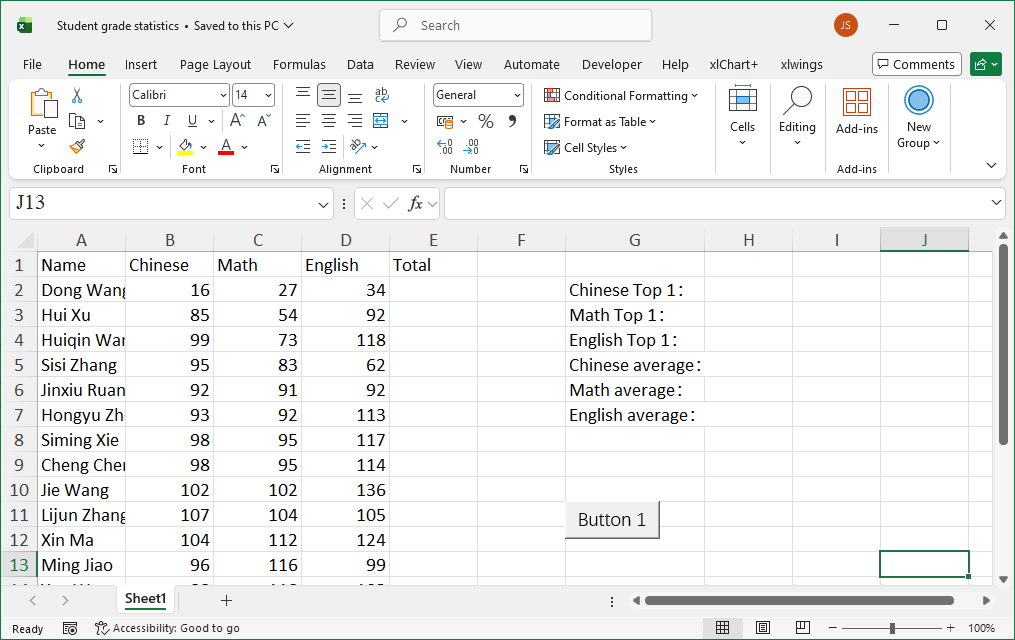
Figure 7-5
Sub Test()
    Dim intI As Integer, intR As Integer, sht As Object
    Set sht = ActiveSheet
    Dim sngScore
    intR = sht.Range("A1").End(xlDown).Row  ' Last row of data
    ' Calculate total scores
    For intI = 2 To intR
        sngScore = sht.Range("B" & intI & ":D" & intI).Value
        sngScore = Application.Transpose(Application.Transpose(sngScore))  ' Convert to 1D
        sht.Cells(intI, 5).Value = Application.Sum(sngScore)
    Next
    ' Subject highs and averages
    sngScore = sht.Range("B2:B" & intR).Value
    sngScore = Application.Transpose(sngScore)
    sht.Cells(2, 8).Value = Application.Max(sngScore)  ' Chinese high
    sht.Cells(5, 8).Value = Application.Average(sngScore)  ' Chinese average
    ' Repeat for Math and English...
End Sub
Example: Highlighting Duplicate Values
Highlight duplicate names in two columns (Figure 7-6). Sample file path: Samples\ch07\Excel VBA\HighlightDuplicates.xlsm.
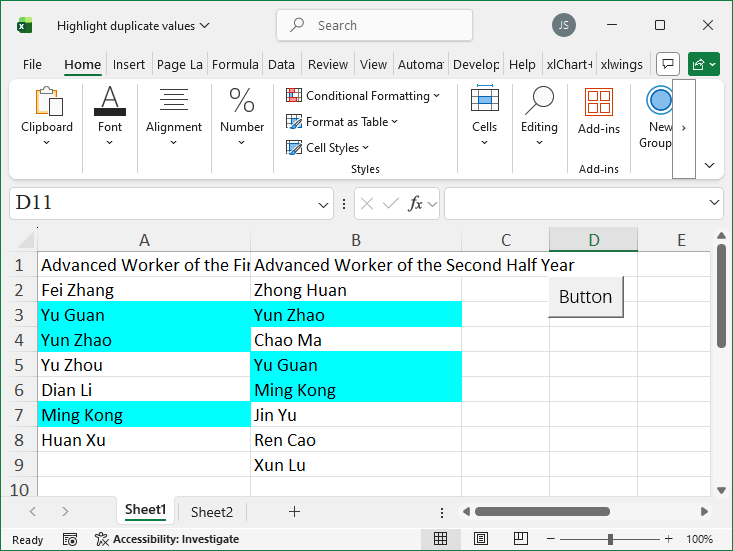
Figure 7-6
Sub Test()
    Dim intI As Integer, intJ As Integer, intR1 As Integer, intR2 As Integer, sht As Object
    Set sht = ActiveSheet
    Dim sngName1, sngName2
    ' Read names into 1D arrays
    intR1 = sht.Range("A1").End(xlDown).Row
    sngName1 = sht.Range("A2:A" & intR1).Value
    sngName1 = Application.Transpose(sngName1)
    intR2 = sht.Range("B1").End(xlDown).Row
    sngName2 = sht.Range("B2:B" & intR2).Value
    sngName2 = Application.Transpose(sngName2)
    ' Highlight duplicates
    For intI = 1 To intR2 - 1
        For intJ = 1 To intR1 - 1
            If sngName2(intI) = sngName1(intJ) Then
                sht.Cells(intJ + 1, 1).Interior.Color = RGB(0, 255, 255)
                sht.Cells(intI + 1, 2).Interior.Color = RGB(0, 255, 255)
            End If
        Next
    Next
End Sub
Example: Finding the Minimum Value Greater Than a Given Number
Find the smallest value in Column B greater than each value in Column A (Figure 7-7). Sample file path: Samples\ch07\Excel VBA\FindMinGreater.xlsm.
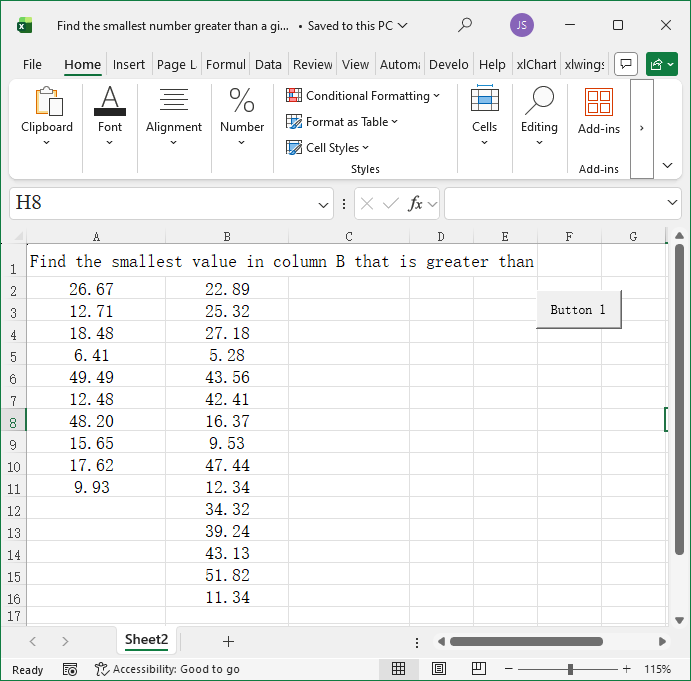
Figure 7-7
Sub Test()
    Dim intI As Integer, intJ As Integer, intR1 As Integer, intR2 As Integer, sht As Object
    Set sht = ActiveSheet
    Dim sngV0, sngV(), sngData
    intR1 = sht.Range("A2").End(xlDown).Row
    intR2 = sht.Range("B2").End(xlDown).Row
    ' Read Column B into array and sort
    sngV0 = sht.Range("B2:B" & intR2).Value
    sngV = Application.Transpose(sngV0)
    sngV = Sort(sngV)  ' Custom sort function(omitted for brevity)
    ' Find minimum greater than each A value
    For intI = 2 To intR1
        sngData = sht.Cells(intI, 1).Value
        For intJ = 1 To intR2 - 2
            If sngData >= sngV(intJ) And sngData <= sngV(intJ + 1) Then
                sht.Cells(intI, 3).Value = sngV(intJ + 1)
                Exit For
            End If
        Next
    Next
End Sub
Example: Generating Pascal's Triangle
Generate Pascal's Triangle (Figure 7-8). Sample file path: Samples\ch07\Excel VBA\PascalsTriangle.xlsm.
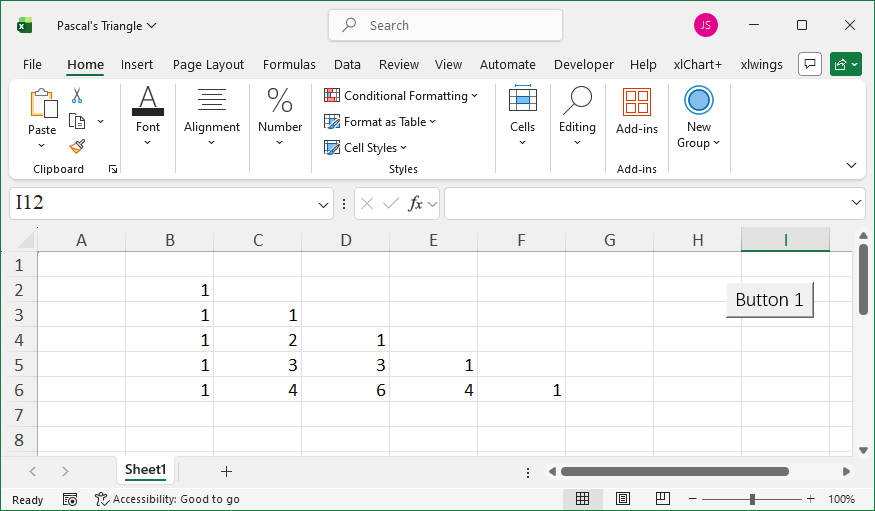
Figure 7-8
Sub YH()
    Dim intI As Long, intJ As Long, intTri(1 To 10, 1 To 10) As Integer
    Dim intN As Integer: intN = 5  ' Number of rows
    intTri(1, 1) = 1
    ' Set edge values to 1
    For intI = 1 To intN - 1
        intTri(intI + 1, 1) = 1  ' First column
        intTri(intI + 1, intI + 1) = 1  ' Diagonal
    Next
    ' Calculate inner values (sum of two above)
    For intI = 1 To intN - 1
        For intJ = 1 To intN - 1
            intTri(intI + 1, intJ + 1) = intTri(intI, intJ) + intTri(intI, intJ + 1)
        Next
    Next
    ' Output to worksheet
    For intI = 1 To intN
        For intJ = 1 To intN
            If intTri(intI, intJ) <> 0 Then
                ActiveSheet.Cells(intI + 1, intJ + 1).Value = intTri(intI, intJ)
            End If
        Next
    Next
End Sub