To help readers consolidate what they have learned in this chapter, this section provides 3 examples related to dictionaries, with both Excel VBA and Python versions of the code.
Application Example 1: Count Occurrences of Unique Values in Multiple Rows of Data
As shown in Figure 8-5, columns B–H list multiple rows of personnel names, with many repeated names. The task is to calculate the occurrence count of each name.
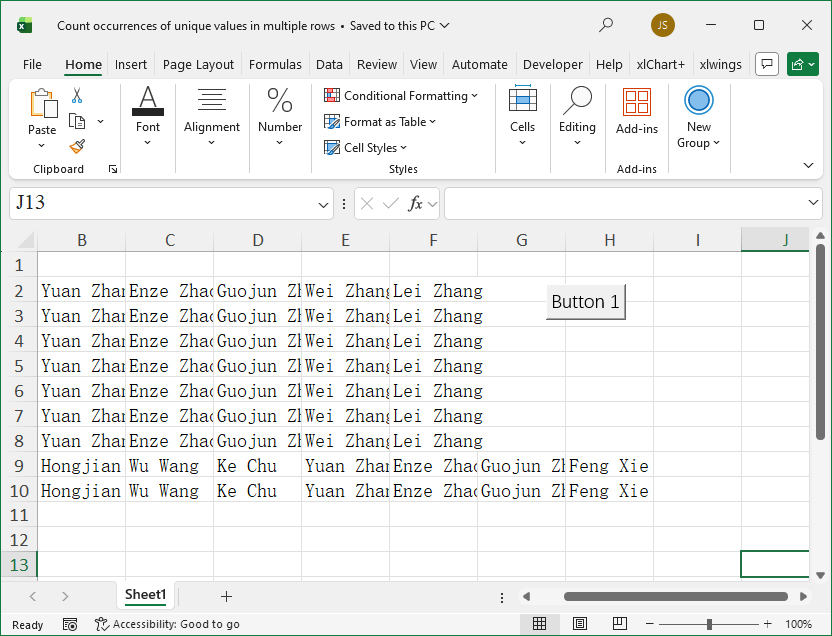
Figure 8-5
Solution idea: Create a dictionary and iterate through all names. If the current name is not yet a key in the dictionary, add it with a value of 1; if it already exists, increment its value by 1.
[Excel VBA] Sample file path: Samples\ch08\Excel VBA\Count Unique Value Occurrences in Multiple Rows.xlsm.
Sub Test()
    Dim arr               ' Store original data
    Dim intI As Integer
    Dim intJ As Integer
    Dim d As Dictionary   ' Dictionary object
    Set d = New Dictionary
    On Error Resume Next
    ' Get original data
    arr = ActiveSheet.Range("B2:H10").Value
    For intI = 1 To UBound(arr, 1)
        For intJ = 1 To UBound(arr, 2)
            ' Iterate each cell, skip empty
            If arr(intI, intJ) <> "" Then
                ' If name exists in dictionary, increment count
                If d.Exists(arr(intI, intJ)) Then
                    d(arr(intI, intJ)) = d(arr(intI, intJ)) + 1
                Else
                    ' Not exist, add key-value pair, value = 1
                    d.Add arr(intI, intJ), 1
                End If
            End If
        Next
    Next
    ' Output all keys (unique names) and counts
    ActiveSheet.Range("J2").Resize(d.Count, 1).Value = _
        Application.WorksheetFunction.Transpose(d.Keys)
    ActiveSheet.Range("K2").Resize(d.Count, 1).Value = _
        Application.WorksheetFunction.Transpose(d.Items)
End Sub
Running the program outputs results in columns J and K of Figure 8-5.
[Python] Sample data file path: Samples\ch08\Python\Count Unique Value Occurrences in Multiple Rows.xlsx, .py file in same directory named sam08-01.py.
class="text-secondary">import xlwings class="text-secondary">as xw       # Import xlwings package
class="text-secondary">from xlwings.constants class="text-secondary">import Direction
class="text-secondary">import os                   # Import os package
# Get current path of .py file
root = os.getcwd()
# Create Excel application, visible, no workbook initially
app = xw.App(visible=True, add_book=False)
# Open data file, writable
bk = app.books.open(fullname=root + r'\Count Unique Value Occurrences in Multiple Rows.xlsx', read_only=False)
sht = bk.sheets(1)         # Get first worksheet
d = {}
arr = sht.range('B2:H10').value   # Get data
for i in range(len(arr)):          # Row
    for j in range(len(arr[0](@ref)):   # Column
        # Iterate each cell, skip empty
        if arr[i][j] is not None:
            if arr[i][j] in d:              # If already in dictionary
                d[arr[i][j]] = d[arr[i][j]] + 1   # Increment count
            else:
                d[arr[i][j]] = 1             # Add new key-value, value = 1
# Output unique names and counts
sht.range('J2').options(transpose=True).value = list(d.keys())
sht.range('K2').options(transpose=True).value = list(d.values())
Running the program outputs results in columns J and K of Figure 8-5.
Application Example 2: Summarize Player Awards
As shown in Figure 8-6, columns A–C list winners of the Ballon d'Or, Best Player, and Golden Boot. The task is to summarize awards for each player.
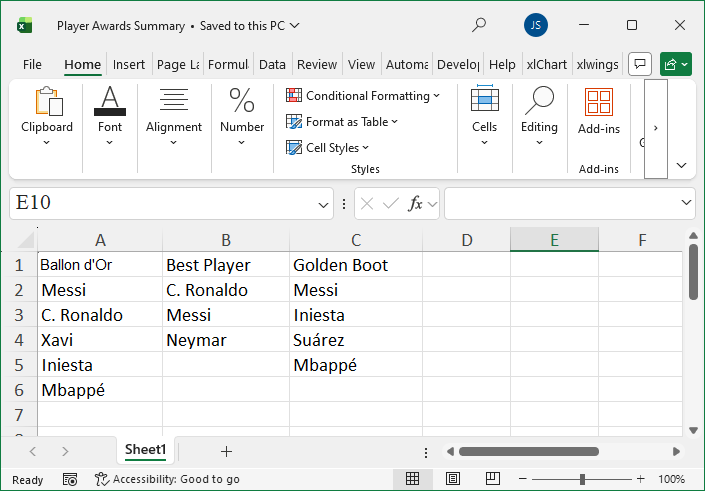
Figure 8-6
Solution idea: Create a dictionary, iterate through all player names. If a name is not yet a key, add it with the current award as value; if it exists, append the current award to the existing value.
[Excel VBA] Sample file path: Samples\ch08\Excel VBA\Summarize Player Awards.xlsm.
Sub Test()
    Dim intI As Long
    Dim intR As Long
    Dim d As Dictionary   ' Dictionary object
    Set d = New Dictionary
    Dim sht As Object
    Set sht = ActiveSheet
    On Error Resume Next
    intR = sht.Range("A1").End(xlDown).Row   ' Row count of column A
    For intI = 2 To intR
        ' Add A column data to dictionary, player name as key, value = "Ballon d'Or"
        d.Add sht.Cells(intI, 1).Value, "Ballon d'Or"
    Next
    intR = sht.Range("B1").End(xlDown).Row   ' Row count of column B
    For intI = 2 To intR
        ' Check if player name exists in dictionary
        If d.Exists(sht.Cells(intI, 2).Value) Then
            ' If exists, append ",Best Player"
            d(sht.Cells(intI, 2).Value) = _
                d(sht.Cells(intI, 2).Value) & ",Best Player"
        Else
            ' Not exist, add new key-value
            d.Add sht.Cells(intI, 2).Value, "Best Player"
        End If
    Next
    intR = sht.Range("C1").End(xlDown).Row   ' Row count of column C
    For intI = 2 To intR
        ' Check if player name exists
        If d.Exists(sht.Cells(intI, 3).Value) Then
            ' Append ",Golden Boot"
            d(sht.Cells(intI, 3).Value) = _
                d(sht.Cells(intI, 3).Value) & ",Golden Boot"
        Else
            d.Add sht.Cells(intI, 3).Value, "Golden Boot"
        End If
    Next
    ' Output dictionary data, column E = player name, F = awards
    sht.Range("E1").Resize(d.Count, 1).Value = _
        Application.WorksheetFunction.Transpose(d.Keys)
    sht.Range("F1").Resize(d.Count, 1).Value = _
        Application.WorksheetFunction.Transpose(d.Items)
End Sub
Running the program outputs results in columns E and F of Figure 8-6.
[Python] Sample data file path: Samples\ch08\Python\Summarize Player Awards.xlsx, .py file named sam08-02.py.
class="text-secondary">import xlwings class="text-secondary">as xw
class="text-secondary">from xlwings.constants class="text-secondary">import Direction
class="text-secondary">import os
root = os.getcwd()
app = xw.App(visible=True, add_book=False)
bk = app.books.open(fullname=root + r'\Summarize Player Awards.xlsx', read_only=False)
sht = bk.sheets(1)
# Get last row number of each column
row_num_1 = sht.api.Range('A1').End(Direction.xlDown).Row
row_num_2 = sht.api.Range('B1').End(Direction.xlDown).Row
row_num_3 = sht.api.Range('C1').End(Direction.xlDown).Row
d = {}
# Add A column data, player name as key, award = "Ballon d'Or"
for i in range(2, row_num_1):
    d[sht.cells(i, 1).value] = 'Ballon d\'Or'
# Process B column
for i in range(2, row_num_2):
    if sht.cells(i, 2).value in d:
        d[sht.cells(i, 2).value] = d[sht.cells(i, 2).value] + ',Best Player'
    else:
        d[sht.cells(i, 2).value] = 'Best Player'
# Process C column
for i in range(2, row_num_3):
    if sht.cells(i, 3).value in d:
        d[sht.cells(i, 3).value] = d[sht.cells(i, 3).value] + ',Golden Boot'
    else:
        d[sht.cells(i, 3).value] = 'Golden Boot'
# Output results
sht.range('E1').options(transpose=True).value = list(d.keys())
sht.range('F1').options(transpose=True).value = list(d.values())
Running the program outputs results in columns E and F of Figure 8-6.
Application Example 3: Summarize Subtopics of Research Projects
As shown in Figure 8-7, columns A and B contain research project and subtopic data. The task is to summarize subtopics for each project, join them with "|" into a string, and count the number of subtopics.
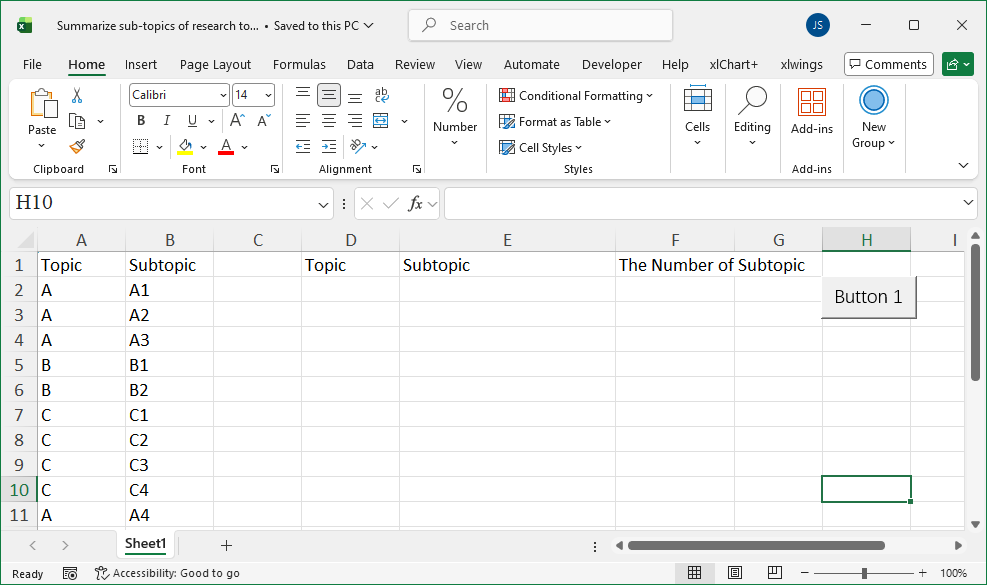
Figure 8-7
Solution idea: This is a combination of Examples 8.5.1 and 8.5.2. Create two dictionaries: one for subtopic names, another for subtopic counts. Refer to previous examples for method details.
[Excel VBA] Sample file path: Samples\ch08\Excel VBA\Summarize Subtopics of Research Projects.xlsm.
Sub Test()
    Dim intI As Integer
    Dim d1 As Dictionary   ' Dictionary for subtopic names
    Set d1 = New Dictionary
    Dim d2 As Dictionary   ' Dictionary for subtopic counts
    Set d2 = New Dictionary
    Dim sht As Object
    Set sht = ActiveSheet
    Dim intR As Integer
    Dim strD
    On Error Resume Next
    ' Get original data
    intR = sht.Range("A1").End(xlDown).Row
    For intI = 2 To intR
        strD = sht.Cells(intI, 1).Value
        ' If key exists, append new subtopic name and increase count
        If d1.Exists(strD) Then
            d1(strD) = d1(strD) & "|" & sht.Cells(intI, 2).Value
            d2(strD) = d2(strD) + 1
        Else
            ' Not exist, add new key-value
            d1.Add strD, sht.Cells(intI, 2).Value
            d2.Add strD, 1
        End If
    Next
    ' Output project names
    sht.Range("D2").Resize(d1.Count, 1).Value = _
        Application.WorksheetFunction.Transpose(d1.Keys)
    ' Output subtopic names
    sht.Range("E2").Resize(d1.Count, 1).Value = _
        Application.WorksheetFunction.Transpose(d1.Items)
    ' Output subtopic counts
    sht.Range("F2").Resize(d1.Count, 1).Value = _
        Application.WorksheetFunction.Transpose(d2.Items)
End Sub
Running the program outputs results in columns D–F of Figure 8-7.
[Python] Sample data file path: Samples\ch08\Python\Summarize Subtopics of Research Projects.xlsx, .py file named sam08-03.py.
class="text-secondary">import xlwings class="text-secondary">as xw
class="text-secondary">from xlwings.constants class="text-secondary">import Direction
class="text-secondary">import os
root = os.getcwd()
app = xw.App(visible=True, add_book=False)
bk = app.books.open(fullname=root + r'\Summarize Subtopics of Research Projects.xlsx', read_only=False)
sht = bk.sheets(1)
row_num = sht.api.Range('A1').End(Direction.xlDown).Row
d1 = {}   # Dict 1: project class="text-secondary">as key, subtopic collection class="text-secondary">as value
d2 = {}   # Dict 2: project class="text-secondary">as key, subtopic count class="text-secondary">as value
for i in range(2, row_num):
    it = sht.cells(i, 1).value
    if it in d1:
        d1[it] = d1[it] + '|' + sht.cells(i, 2).value
        d2[it] = d2[it] + 1
    else:
        d1[it] = sht.cells(i, 2).value
        d2[it] = 1
# Output project names
sht.range('D2').options(transpose=True).value = list(d1.keys())
# Output subtopic names
sht.range('E2').options(transpose=True).value = list(d1.values())
# Output subtopic counts
sht.range('F2').options(transpose=True).value = list(d2.values())
Running the program outputs results in columns D–F of Figure 8-7.