Decision structures are used to test a conditional expression and execute different operations based on the test result. Excel VBA and Python support various forms of decision structures.
Single-Branch Decision Structure
A single-branch decision structure only specifies the statements to execute when the decision condition is met.
[Excel VBA] In Excel VBA, the syntax of the single-branch decision structure is as follows:
If condition Then statementHere, the condition is often a relational or logical expression. When the condition is met, the statement after Then is executed.
[Python] In Python, the syntax of the single-branch decision structure is as follows:
if condition: statementHere, the condition is often a relational or logical expression. When the condition is met, the statement after the colon is executed.
The following example demonstrates the single-branch decision structure. It requires the user to input a number at runtime and uses the single-branch decision structure to check if the number is 1. If so, it outputs "The input value is 1".
[Excel VBA] Sample file path: Samples\ch05\Excel VBA\DecisionStructure.xlsm
Sub Test1()
    Dim intA As Integer
    intA = InputBox("Please enter a number:")
    If intA = 1 Then Debug.Print("The input value is 1")
End Sub
When running the procedure, an input box pops up. Enter 1 in the text box, and the output in the Immediate Window is "The input value is 1".
[Python] Sample .py file path: Samples\ch05\Python\sam05-001.py
a = input('Please enter a number:')
if(int(a) == 1): print('The input value is 1')
In the Python IDLE script window, select Run → Run Module. The IDLE command-line window prompts "Please enter a number:". Enter 1 and press Enter; the following result is displayed:
>>> = RESTART: ...\Samples\ch05\Python\sam05-001.py
Please enter a number: 1
The input value is 1
Two-Branch Decision Structure
A two-branch decision structure changes the program execution flow based on different results of the decision condition. If the condition is true, specified statements are executed; if false, other statements are executed.
[Excel VBA] In Excel VBA, the syntax of the two-branch decision structure is as follows:
If condition Then
    statements...
Else
    statements...
End If
[Python] In Python, the syntax of the two-branch decision structure is as follows:
if condition:
    statements...
else:
    statements...
The following example demonstrates the application of the two-branch decision structure. First, input a number, then check if it is greater than 0. If yes, output "Success."; if not (less than or equal to 0), output "Failure.".
[Excel VBA] Sample file path: Samples\ch05\Excel VBA\DecisionStructure.xlsm
Sub Test2()
    Dim intPassed As Integer
    intPassed = InputBox("Please enter a number:")
    If intPassed > 0 Then
        Debug.Print "Success."
    Else
        Debug.Print "Failure."
    End If
End Sub
When running the procedure, an input box pops up. Enter 5 in the text box, and the output in the Immediate Window is "Success.".
[Python] Sample .py file path: Samples\ch05\Python\sam05-002.py
passed = int(input('Please enter a number:'))  # Prompt to input a number
if(passed > 0):                              # Judge if the input number is greater than 0
    print('Success.')
else:                                         # If the number is less than or equal to 0
    print('Failure.')
In the Python IDLE script window, select Run → Run Module. The IDLE command-line window prompts "Please enter a number:". Enter 5 and press Enter; the following result is displayed:
>>> = RESTART: ...\Samples\ch05\Python\sam05-002.py
Please enter a number: 5
Success.
Multi-Branch Decision Structure
The multi-branch decision structure extends the two-branch structure: if the first condition is not met, a second condition is given; if the second is not met, a third is given, and so on. If the current condition is met, the corresponding statements are executed; if none are met, the final statements are executed.
[Excel VBA] In Excel VBA, the syntax of the multi-branch decision structure is as follows:
If condition1 Then
    statements1……
ElseIf condition2 Then
    statements2……
ElseIf condition3 Then
    statements3……
...
Else
    statementsn……
End If
[Python] In Python, the syntax of the multi-branch decision structure is as follows:
if condition1:
    statements1……
elif condition2:
    statements2……
elif condition3:
    statements3……
...
else:
    statementsn……
The following example uses a multi-branch decision structure to judge the grade of a given score:
≥90: Excellent
≥80: Good
≥70: Medium
≥60: Pass
Otherwise: Fail
[Excel VBA] Sample file path: Samples\ch05\Excel VBA\DecisionStructure.xlsm
Sub Test3()
    Dim intSC As Integer
    intSC = InputBox("Please enter a number:")
    If intSC >= 90 Then
        Debug.Print "Excellent"
    ElseIf intSC >= 80 Then
        Debug.Print "Good"
    ElseIf intSC >= 70 Then
        Debug.Print "Medium"
    ElseIf intSC >= 60 Then
        Debug.Print "Pass"
    Else
        Debug.Print "Fail"
    End If
End Sub
When running the procedure, an input box pops up. Enter 85 in the text box, and the output in the Immediate Window is "Good".
[Python] Sample .py file path: Samples\ch05\Python\sam05-003.py
sc = int(input('Please enter a number:'))
if sc >= 90:
    print('Excellent')
elif sc >= 80:
    print('Good')
elif sc >= 70:
    print('Medium')
elif sc >= 60:
    print('Pass')
else:
    print('Fail')
Lines 2–11 form the multi-branch decision structure to judge the grade of the input score.
In the Python IDLE script window, select Run → Run Module. The IDLE command-line window prompts "Please enter a number:". Enter 88 and press Enter; the following result is displayed:
>>> = RESTART: ...\Samples\ch05\Python\sam05-003.py
Please enter a number: 88
Good
Nested Decision Structures
A decision structure is called nested if its If (or if) block, ElseIf (or elif) block, or Else (or else) block contains a new decision structure.
[Excel VBA] In Excel VBA, the syntax of a nested structure is as follows:
If condition1 Then
    statements……
    If condition2 Then
        statements……
    ElseIf condition3 Then
        statements……
    Else
        statements……
    End If
ElseIf condition4 Then
    statements……
Else
    statements……
End If
[Python] In Python, the syntax of a nested structure is as follows:
if condition1:
    statements……
    if condition2:
        statements……
    elif condition3:
        statements……
    else:
        statements……
elif condition4:
    statements……
else:
    statements……
The following example rewrites the grade-judging example from Section 5.1.3 into a nested decision structure: first check if the score is ≥60. If not, directly mark it as "Fail"; if yes, nest a multi-branch structure to further judge the grade.
[Excel VBA] Sample file path: Samples\ch05\Excel VBA\DecisionStructure.xlsm
Sub Test4()
    Dim intSC As Integer
    intSC = InputBox("Please enter a number:")
    If intSC >= 60 Then
        If intSC >= 90 Then
            Debug.Print "Excellent"
        ElseIf intSC >= 80 Then
            Debug.Print "Good"
        ElseIf intSC >= 70 Then
            Debug.Print "Medium"
        Else
            Debug.Print "Pass"
        End If
    Else
        Debug.Print "Fail"
    End If
End Sub
When running the procedure, an input box pops up. Enter 85 in the text box, and the output in the Immediate Window is "Good".
[Python] Sample .py file path: Samples\ch05\Python\sam05-004.py
sc = int(input('Please enter a number:'))
if sc >= 60:
    if sc >= 90:
        print('Excellent')
    elif sc >= 80:
        print('Good')
    elif sc >= 70:
        print('Medium')
    else:
        print('Pass')
else:
    print('Fail')
In the Python IDLE script window, select Run → Run Module. The IDLE command-line window prompts "Please enter a number:". Enter 88 and press Enter; the following result is displayed:
>>> = RESTART: ...\Samples\ch05\Python\sam05-004.py
Please enter a number: 88
Good
Ternary Operation Expression
A ternary operation expression implements a two-branch decision structure in a single line. The following demonstrates ternary operations in Excel VBA and Python.
[Excel VBA] In Excel VBA, the IIf function is used to achieve ternary operations. IIf returns one of two results based on the value of an expression:
IIf(expr, truepart, falsepart)
expr: Required. The expression to evaluate.
truepart: Required. The value or expression returned if expr is True.
falsepart: Required. The value or expression returned if expr is False.
[Python] In Python, the ternary operation syntax is:
b if condition else aIf the condition is met, the result is b; otherwise, it is a.
The following example uses a ternary operation to check if a given number is ≥500.
[Excel VBA] Sample file path: Samples\ch05\Excel VBA\DecisionStructure.xlsm
Sub Test5()
    Dim intA As Integer
    intA = InputBox("Please enter a number:")
    Debug.Print IIf(intA > 500, ">500", "<=500")
End Sub
When running the procedure, an input box pops up. Enter 300 in the text box, and the output in the Immediate Window is <=500.
[Python] Sample .py file path: Samples\ch05\Python\sam05-005.py
a = int(input('Please enter a number:'))
print('>500' if a > 500 else '<=500')
In the Python IDLE script window, select Run → Run Module. The IDLE command-line window prompts "Please enter a number:". Enter 300 and press Enter; the following result is displayed:
>>> = RESTART: ...\Samples\ch05\Python\sam05-005.py
Please enter a number: 300
<=500
The following example uses a ternary operation to find the minimum of three given numbers.
[Excel VBA] Sample file path: Samples\ch05\Excel VBA\DecisionStructure.xlsm
Sub Test6()
    Dim intX As Integer, intY As Integer, intZ As Integer, intS As Integer
    intX = 10: intY = 20: intZ = 30
    intS = IIf(intX < intY, intX, intY)       ' Assign the smaller of intX and intY to intS
    intS = IIf(intS < intZ, intS, intZ)       ' Get the smaller of intS and intZ
    Debug.Print intS
End Sub
When running the procedure, the Immediate Window outputs the minimum value 10.
[Python] Sample .py file path: Samples\ch05\Python\sam05-006.py
x, y, z = 10, 30, 20
small = (x if x < y else y)               # Return the smaller of the first two numbers
small = (z if small > z else small)       # Return the smaller of the previous result and the third number
print(small)
In the Python IDLE script window, select Run → Run Module. The IDLE command-line window displays:
>>> = RESTART: ...\Samples\ch05\Python\sam05-006.py
10
Example: Check if a Year is a Leap Year
Leap years include century leap years and common leap years:
Century leap year: Divisible by 400.
Common leap year: Divisible by 4 but not by 100.
The following example checks if the years in Column A of Figure 5-1 are leap years and displays the result in the corresponding cell in Column B.
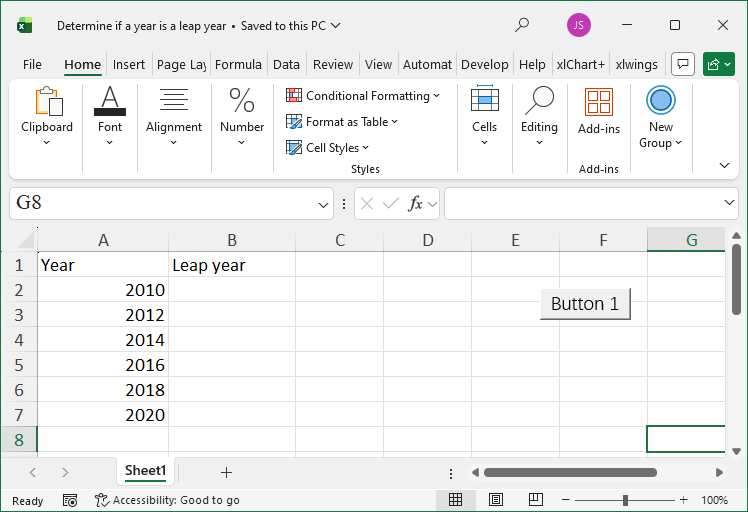
Figure 5-1
[Excel VBA] Sample file path: Samples\ch05\Excel VBA\CheckLeapYear.xlsm
Sub Test()
    Dim intI As Integer, intY As Integer
    Dim bolYN As Boolean  ' True if leap year, False otherwise
    For intI = 2 To 7
        intY = ActiveSheet.Cells(intI, 1).Value  ' Get the year
        If(intY Mod 400) = 0 Then              ' Check century leap year
            bolYN = True
        ElseIf(intY Mod 4) = 0 Then           ' Check common leap year
            If(intY Mod 100) > 0 Then          ' Divisible by 4 but not 100 → common leap year
                bolYN = True
            Else                                ' Divisible by 4 and 100 → not a leap year
                bolYN = False
            End If
        Else                                    ' Not divisible by 4 → not a leap year
            bolYN = False
        End If
        ' Output result in Column B
        If bolYN Then
            ActiveSheet.Cells(intI, 2).Value = "Yes"
        Else
            ActiveSheet.Cells(intI, 2).Value = "No"
        End If
    Next
End Sub
Running the program outputs the results in Column B of Figure 5-1.
[Python] Sample .py file path: Samples\ch05\Python\sam05-01.py
class="text-secondary">import xlwings class="text-secondary">as xw
class="text-secondary">from xlwings.constants class="text-secondary">import Direction
class="text-secondary">import os
root = os.getcwd()
app = xw.App(visible=True, add_book=False)
bk = app.books.open(fullname=root + r'\CheckLeapYear.xlsx', read_only=False)
sht = bk.sheets(1)  # Get the first worksheet
# Get the last row of data in Column A
rows = sht.api.Range('A1').End(Direction.xlDown).Row
n = 1  # Track the current row
# Iterate through data cells
for rng in sht.range('A2:A' + str(rows)):
    n += 1
    yr = int(rng.value)  # Get the year
    # Check leap year
    if yr % 400 == 0:
        yn = True
    elif yr % 4 == 0:
        if yr % 100 > 0:
            yn = True
        else:
            yn = False
    else:
        yn = False
    # Output "Yes" or "No" in Column B
    sht.cells(n, 2).value = 'Yes' if yn else 'No'
Running the script opens the data file, calculates the results, and displays them in Column B (as in Figure 5-1).