This section introduces sorting and filtering of specified fields in pivot tables.
Sorting Pivot Tables
Use the AutoSort method of the PivotField object to sort a specified field. Below, create a pivot table and sort the field “sum:Amount” in descending order.
[Excel VBA] The sample file path is Samples\ch19\Excel VBA\ Sorting in a Pivot Table.xlsm. Run the CreatePVT procedure to generate the pivot table. The Sort procedure uses the AutoSort method to sort “sum:Amount” in descending order.
Sub Sort()
    ' Omitted: get pivot table pvt
    ' ...
    pvt.PivotFields(“Origin”).AutoSort _
        Order:=xlDescending, Field:="sum of Amount"
End Sub
Running the procedure generates the pivot table shown in Figure 7-10.
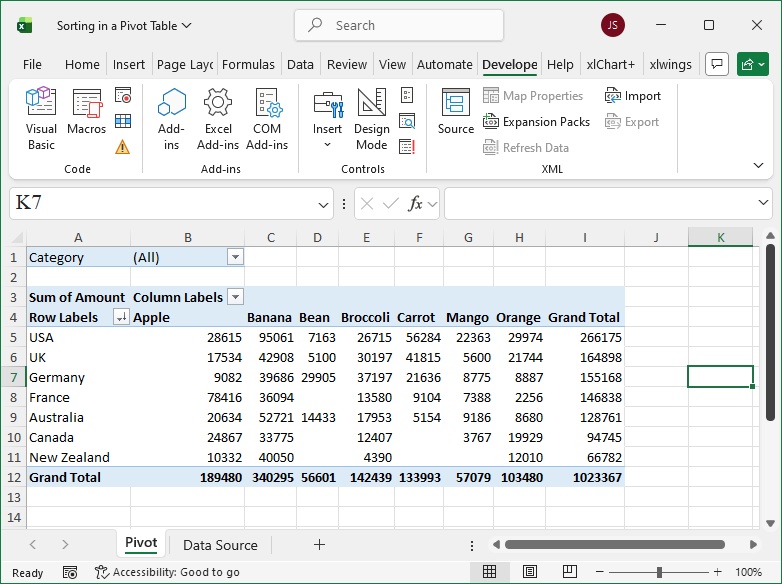
Figure 7-10
[Python] The Python script file path is Samples\ch19\Python\ Sorting in a Pivot Table.py.
(Omitted code for brevity; refer to the Python file.)
Sort:
pvt.PivotFields(‘Origin’).AutoSort(
    Order=xw.constants.SortOrder.xlDescending,
    Field='sum:Amount')
Running the script generates the pivot table shown in Figure 7-10.
Filtering Pivot Tables
Specifying a single value or multiple values for a field enables single-selection and multi-selection filtering of the pivot table.
[Excel VBA] The sample file path is Samples\ch19\Excel VBA Pivot Table Filtering.xlsm. Run the CreatePVT procedure to generate the pivot table. The Filter1 procedure specifies using the “Vegetable” value of the “Category” field.
Sub Filter1()
    ' Omitted: get pivot table pvt
    ' ...
    Dim pf As PivotField
    Set pf = pvt.PivotFields(“Category”)   ' "Category" field
    pf.ClearAllFilters
    pf.CurrentPage = "Vegetable"           ' Select value
End Sub
Running the procedure generates the pivot table shown in Figure 7-11.
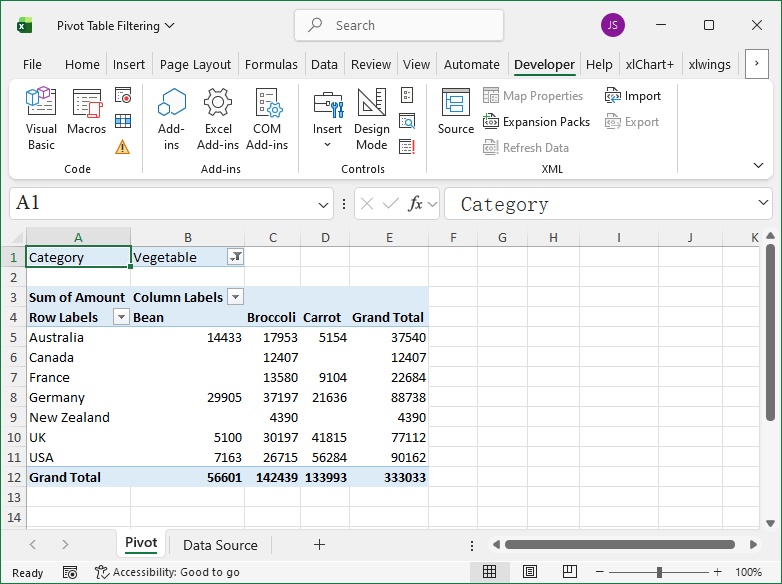
Figure 7-11
The Filter2 procedure hides the three pivot items “Australia”, “Canada”, and “UK” of the “Origin” field.
Sub Filter2()
    ' Multi-selection filtering
    Dim shtPVT As Worksheet
    Dim pvt As PivotTable
    Dim pf As PivotField
    Set shtPVT = Worksheets("Pivot")
    Set pvt = shtPVT.PivotTables("Pivot")
    Set pf = pvt.PivotFields(“Origin”)
    pf.ClearAllFilters
    ' pf.EnableMultiplePageItems = True
    pf.PivotItems("Australia").Visible = False
    pf.PivotItems("Canada").Visible = False
    pf.PivotItems("UK").Visible = False
End Sub
Running the procedure generates the pivot table shown in Figure 7-12.
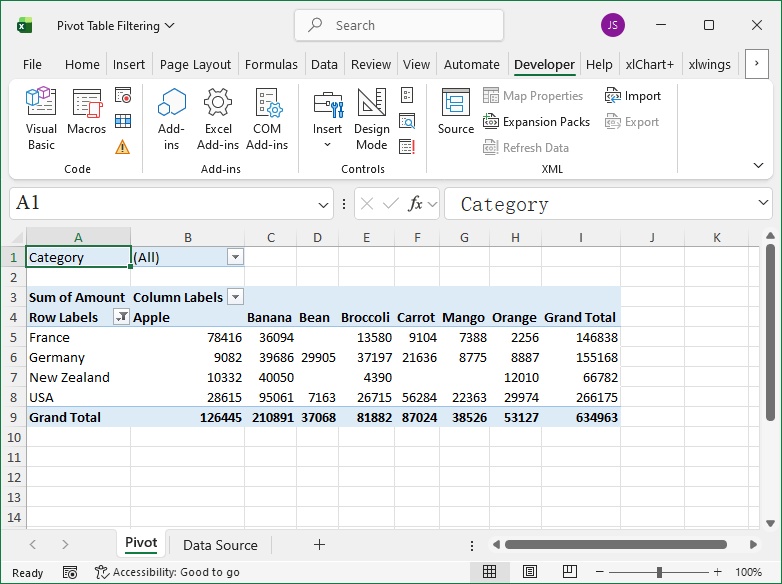
Figure 7-12
[Python] The Python script file path is Samples\ch19\Python\ Pivot Table Filtering.py.
(Omitted code for brevity; refer to the Python file.)
Two filtering methods are used below.
First filtering method (single selection):
# Single-selection filtering
pf = pvt.PivotFields('Category')
pf.ClearAllFilters()
pf.CurrentPage = 'Vegetable'
Second filtering method (multi-selection):
# Multi-selection filtering
pf2 = pvt.PivotFields('Origin')
pf2.ClearAllFilters()
pf2.PivotItems('Australia').Visible = False
pf2.PivotItems('Canada').Visible = False
pf2.PivotItems('UK').Visible = False
Select single or multi-selection and run the script; the generated pivot tables are shown in Figures 7-11 and 7-12.