A form is a container object that can hold various controls and, together with these controls, constitutes the program interface. A standard project must contain at least one form in its interface.
Creating a Form
The following describes how to create a form using Excel VBA and Python Tkinter.
[Excel VBA] Open Excel, click Developer → Visual Basic to open the Excel VBA programming environment. If the Developer tab is not visible, load it following the steps in Section 1.2.1.
In the Excel VBA environment, select Insert → UserForm to add a form named UserForm1, as shown in Figure 2-1. A Toolbox floating window will appear, providing buttons for adding controls to the form. Section 2.2 will detail controls. The lower-left Properties panel shows the form’s properties and their values when the form is selected. Double-click the form to enter the code editing window.
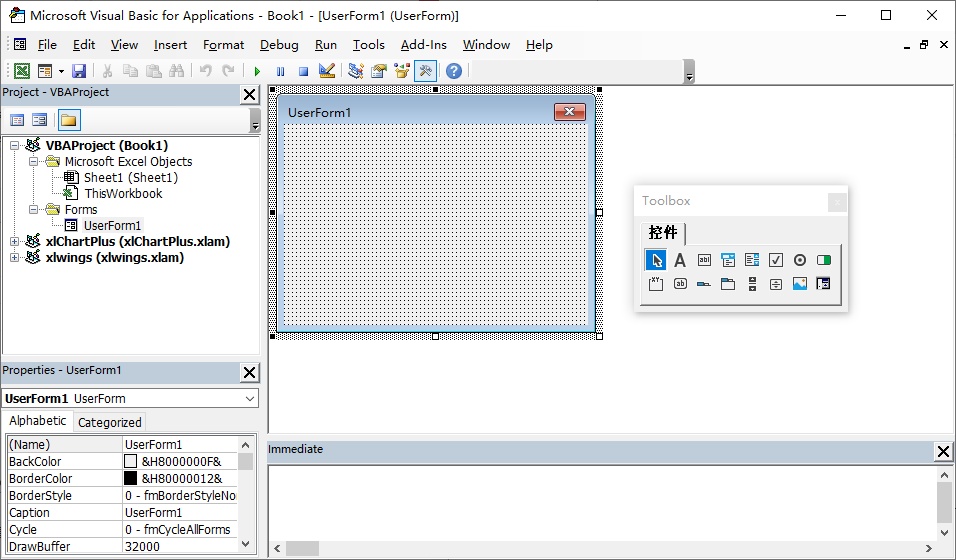
Figure 2-1 Creating a form with Excel VBA
[Python Tkinter] To create a form using Tkinter in Python, open the Python IDLE file script window and enter the following commands in the Python Shell:
>>> from tkinter import *
>>> form = Tk()  # Create a form
The default form created is shown in Figure 2-2.
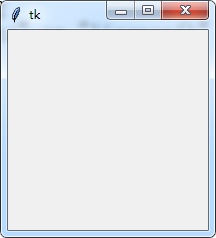
Figure 2-2 Default form created
Main Properties, Methods, and Events of a Form
After creating a form, you can change its appearance by setting properties, perform operations using methods, and respond to external actions using events.
[Excel VBA] In Excel VBA, the main properties of a form can be viewed in the Properties panel. Key properties include:
Left, Top, Width, Height: Set the horizontal coordinate, vertical coordinate of the form’s top-left corner, and the form’s width and height.
BackColor, ForeColor: Set the form’s background and foreground colors.
BorderStyle: Determine the type of form border.
Caption: Set the form’s title.
Picture: Display an image on the form.
There are two ways to set form properties in Excel VBA:
Design-time: Select the form and input property values directly in the Properties panel (e.g., set BackColor to yellow).
Run-time: Use code to set properties. For example, the code below changes the form’s background color to yellow when the form is activated:
Private Sub UserForm_Activate()
    Me.BackColor = RGB(255, 255, 0)
End Sub
Main methods of the form:
Show: Display the form.
Move: Move the form. This method is faster than setting Left, Top, Width, and Height individually when resizing.
Main events of the form:
Activate: Triggered when the form is activated.
Click: Triggered when the form is clicked.
Resize: Triggered when the form’s size changes.
MouseDown, MouseMove, MouseUp: Triggered when the mouse is pressed, moved, or released on the form.
For example, the UserForm_Activate procedure above changes the form’s background color to yellow when the form is activated.
[Python Tkinter] In Python Tkinter, create a form object first:
>>> from tkinter import *
>>> form = Tk()
Use the keys() method of the form object to get all its properties:
>>> form.keys()
['bd', 'borderwidth', 'class', 'menu', 'relief', 'screen', 'use', 'background', 'bg', 'colormap', 'container', 'cursor', 'height', 'highlightbackground', 'highlightcolor', 'highlightthickness', 'padx', 'pady', 'takefocus', 'visual', 'width']
Ways to set form properties in Python Tkinter:
Use the config() method to set one or more properties at once. For example:
>>> form.config(background='yellow', width=300)
(Note: Property names should not be quoted.)
Use dictionary-style assignment to set one property at a time. For example:
>>> form['background'] = 'green'
Use the attributes() method to set special properties like alpha (transparency), disabled (unavailable), fullscreen (full-screen), and topmost (always on top). For example:
>>> form.attributes('-alpha', 0.5)       # Transparency: semi-transparent
>>> form.attributes('-disabled', False)  # Available
>>> form.attributes('-fullscreen7;, False)# Not full-screen
>>> form.attributes('-topmost', False)   # Not always on top
Use the geometry() method to set the form’s position and size. For example:
>>> form.geometry('400x200+200+300') # Width x Height + X + YSet the form’s title:
>>> form.title('New Form')Ways to get property values:
Dictionary-style:
>>> form['background']
'green'
Use the cget() method:
>>> form.cget('background')
'green'
Use the attributes() method:
>>> form.attributes('-alpha')
0.5
Get the form’s position and size:
>>> form.winfo_x()    # Horizontal coordinate of top-left corner
125
>>> form.winfo_y()    # Vertical coordinate of top-left corner
125
>>> form.winfo_width() # Form width
300
>>> form.winfo_height()# Form height
239
Get the form’s title:
>>> form.title()
'New Form'