Using geometric transformations, new shapes or shapes in new positions can be quickly obtained from existing shapes. Geometric transformation operations such as translation, rotation, scaling, and flipping of shapes can be achieved using properties of the Shape object.
Shape Translation
The IncrementLeft method of the Shape object can translate the shape horizontally. The IncrementLeft method has one parameter: when the parameter value is greater than 0, the shape moves to the right; when less than 0, it moves to the left.
The IncrementTop method of the Shape object can translate the shape vertically. The IncrementTop method has one parameter: when the parameter value is greater than 0, the shape moves downward; when less than 0, it moves upward.
Below is an example of adding a rectangular region with a preset water droplet texture and translating it 70 units to the right and 50 units downward.
【Excel VBA】 The sample file path is: Samples\ch17\Excel VBA\Shape Translation.xlsm.
Sub Test()
    Dim shp As Shape
    Set shp = ActiveSheet.Shapes.AddShape(1, 100, 50, 200, 100) ' Rectangular region
    shp.Fill.PresetTextured 5   ' Water droplet preset texture
    shp.IncrementLeft 70       ' Move right by 70 units
    shp.IncrementTop 50        ' Move down by 50 units
End Sub
Running this procedure generates and translates the shape.
【Python】 Enter the following in the Python Shell:
>>> shp = sht.api.Shapes.AddShape(1, 100, 50, 200, 100)  # Rectangular region
>>> shp.Fill.PresetTextured(5)  # Water droplet preset texture
>>> shp.IncrementLeft(70)       # Move right by 70 units
>>> shp.IncrementTop(50)        # Move down by 50 units
The rectangular region before and after translation is shown in Figures 5-14 and 5-15.
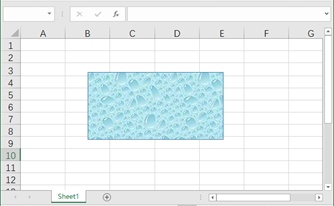
Figure 5-14
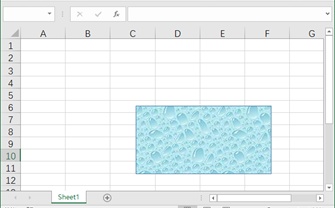
Figure 5-15
Shape Rotation
The IncrementRotation method of the Shape object can rotate the shape. The IncrementRotation method rotates the shape around the Z-axis. It has one parameter representing the rotation angle in degrees. When the parameter value is greater than 0, the shape rotates clockwise; when less than 0, counterclockwise.
Below is an example of adding a rectangular region with a preset water droplet texture and rotating it 30° clockwise around the Z-axis.
【Excel VBA】 The sample file path is: Samples\ch17\Excel VBA\Shape Rotation.xlsm.
Sub Test()
    Dim shp As Shape
    Set shp = ActiveSheet.Shapes.AddShape(1, 100, 50, 200, 100) ' Rectangular region
    shp.Fill.PresetTextured 5   ' Water droplet preset texture
    shp.IncrementRotation 30   ' Rotate 30° clockwise
End Sub
Running this procedure generates and rotates the shape.
【Python】 Enter the following in the Python Shell:
>>> shp = sht.api.Shapes.AddShape(1, 100, 50, 200, 100)  # Rectangular region
>>> shp.Fill.PresetTextured(5)   # Water droplet preset texture
>>> shp.IncrementRotation(30)   # Rotate 30° clockwise
The rectangular region before and after rotation is shown in Figures 5-16 and 5-17.
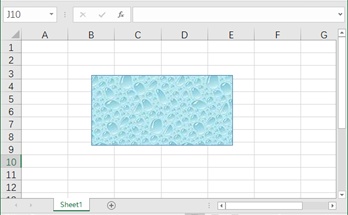
Figure 5-16
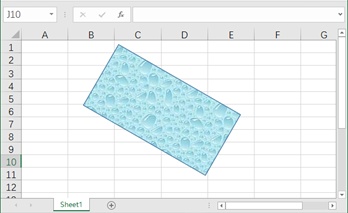
Figure 5-17
Shape Scaling
Shape scaling, also known as proportional transformation, refers to scale a given shape by a certain proportion. The ScaleWidth and ScaleHeight methods of the Shape object can specify the scaling ratio in the horizontal and vertical directions to achieve shape scaling.
The ScaleWidth and ScaleHeight methods each have 3 parameters, as listed in Table 5-11.
Table 5-11 Parameters of the ScaleWidth and ScaleHeight Methods
| Name | Required/Optional | Data Type | Description |
|---|---|---|---|
| Factor | Required | Single | Ratio of the adjusted width to the current or original width |
| RelativeToOriginalSize | Required | msoTriState | When False, scales relative to its current size. This parameter can only be set to True if the specified shape is a picture or OLE object. |
| Scale | Optional | Variant | One of the constants of the msoScaleFrom type, specifying which part of the shape remains in its original position during scaling. |
The Scale parameter takes values from the msoScaleFrom enumeration constant, indicating which part of the shape remains in its original position after scaling. The values of the Scale parameter are listed in Table 5-12.
Table 5-12 Values of the Scale Parameter
| Name | Value | Description |
|---|---|---|
| msoScaleFromBottomRight | 2 | Bottom-right corner of the shape remains in its original position |
| msoScaleFromMiddle | 1 | Center of the shape remains in its original position |
| msoScaleFromTopLeft | 0 | Top-left corner of the shape remains in its original position |
Below is an example of creating an elliptical region, adding a granite texture, then scaling it to 75% of its original width horizontally and 1.75 times its original height vertically.
【Excel VBA】 The sample file path is: Samples\ch17\Excel VBA\Shape Scaling.xlsm.
Sub Test()
    Dim shp As Shape
    Set shp = ActiveSheet.Shapes.AddShape(9, 100, 50, 200, 100)  ' Elliptical region
    shp.Fill.PresetTextured 12   ' Preset texture: granite
    shp.ScaleWidth 0.75, False   ' Width * 0.75
    shp.ScaleHeight 1.75, False  ' Height * 1.75
End Sub
Running this procedure generates and scales the shape.
【Python】 Enter the following in the Python Shell:
>>> shp = sht.api.Shapes.AddShape(9, 100, 50, 200, 100)   # Elliptical region
>>> shp.Fill.PresetTextured(12)   # Preset texture: granite
>>> shp.ScaleWidth(0.75, False)   # Width * 0.75
>>> shp.ScaleHeight(1.75, False)  # Height * 1.75
The elliptical region before and after scaling is shown in Figures 5-18 and 5-19.
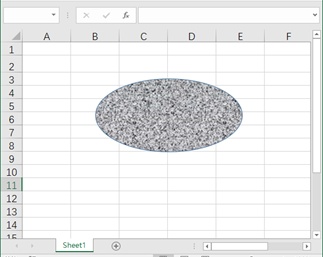
Figure 5-18
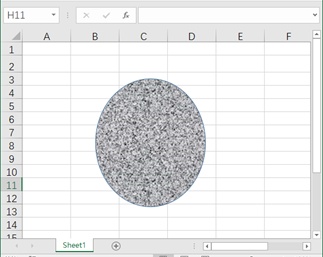
Figure 5-19
Shape Flipping
Shape flipping, also called mirror transformation or symmetric transformation, can be achieved using the Flip method of the Shape object. The Flip method flips the shape relative to a horizontal or vertical axis. It has one parameter specifying whether to flip horizontally or vertically. The values for horizontal and vertical flipping are 0 and 1, respectively.
Below is an example of creating a rectangular region (with a wood texture for easy comparison) and performing horizontal and vertical flipping.
【Excel VBA】 The sample file path is: Samples\ch17\Excel VBA\Shape Flipping.xlsm.
Sub Test()
    Dim shp As Shape
    Set shp = ActiveSheet.Shapes.AddShape(1, 100, 50, 200, 100)  ' Rectangular region
    shp.Fill.PresetTextured 22   ' Preset texture
    shp.Flip 0                   ' Horizontal flip
    shp.Flip 1                   ' Vertical flip
End Sub
Running this procedure generates and flips the shape.
【Python】 Enter the following in the Python Shell:
>>> shp = sht.api.Shapes.AddShape(1, 100, 50, 200, 100)  # Rectangular region
>>> shp.Fill.PresetTextured(22)   # Preset texture
>>> shp.Flip(0)                   # Horizontal flip
>>> shp.Flip(1)                   # Vertical flip
The rectangular region before flipping is shown in Figure 5-20, after horizontal flipping in Figure 5-21, and after horizontal then vertical flipping in Figure 5-22. Note that each flipping operation is applied to the result of the previous transformation, not the original shape.
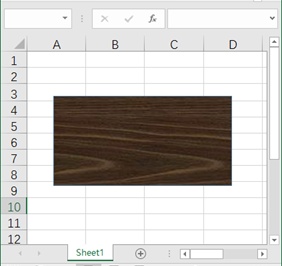
Figure 5-20
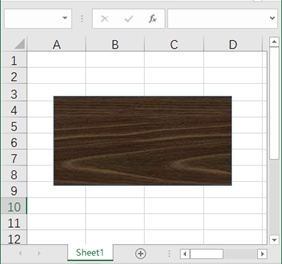
Figure 5-21
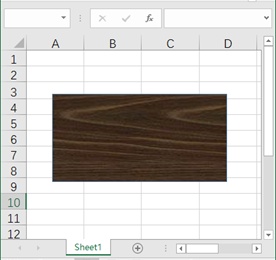
Figure 5-22