Regular expressions have wide applications in text validation, searching, and replacement. This section introduces the basic concepts of regular expressions and helps readers understand their creation and application through simple examples.
What Is a Regular Expression
Regarding text search and replacement, there are two typical applications. One is searching for files in a specified directory in Windows Explorer, usually by specifying the file name or part of the file name, and wildcard characters ? and * can be used to represent one character or any number of characters respectively — for example, *.exe represents all executable files. The other is searching and replacing in office software such as Notepad and Word. In both cases, the search text is a simple regular expression.
Often, we need to match more complex text forms, such as extracting phone numbers, mobile numbers, email addresses, etc., from a webpage’s text, or extracting substrings from a given text that start with a certain string and end with another. This requires the use of regular expressions.
A regular expression is a logical expression composed of ordinary characters and some metacharacters. Ordinary characters include digits and uppercase/lowercase letters, while metacharacters use characters or combinations of characters to express special meanings. Thus, a regular expression is essentially a combination of ordinary characters and metacharacters according to predefined rules to express the matching logic of a string. During execution, the expression is parsed to understand the intended meaning and perform matching, locating the required content.
Using Regular Expressions
Since the need for text search and replacement is common, regular expression functionality exists in various programming languages. Across different languages, the rules for writing regular expressions are almost the same; the difference lies in the syntax for compiling and processing regular expressions — that is, how they are used.
【Excel VBA】
In Excel VBA, to use regular expressions, you must first import the regex object. Enter the Excel VBA programming environment, select Tools → References, and open the References dialog box as shown in Figure 8-1. Check the Microsoft VBScript Regular Expressions 5.5 checkbox in the Available References list box, then click OK.
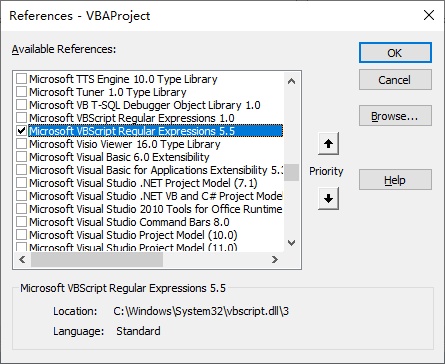
Figure 8-1
Once the regex-related library is referenced, you can view it using Excel VBA’s Object Browser. Select View → Object Browser to open the Object Browser shown in Figure 8-2. In the dropdown list at the upper left, select VBScript_RegExp_55; the Classes list will display all classes in the library. Selecting a class shows all its members in the right-hand list. Selecting a member displays its description in the text box below.
In the Object Browser, the object generated by the RegExp class is the regex object. In Excel VBA, the regex object is used to implement regular expression functions, namely text search and replacement. The object generated by the MatchCollection class is a collection of matched texts after a search, the Match class represents an individual match, and the SubMatches class stores data for each group when the regular expression contains groups (for details on groups, refer to the section on capturing and non-capturing groups).
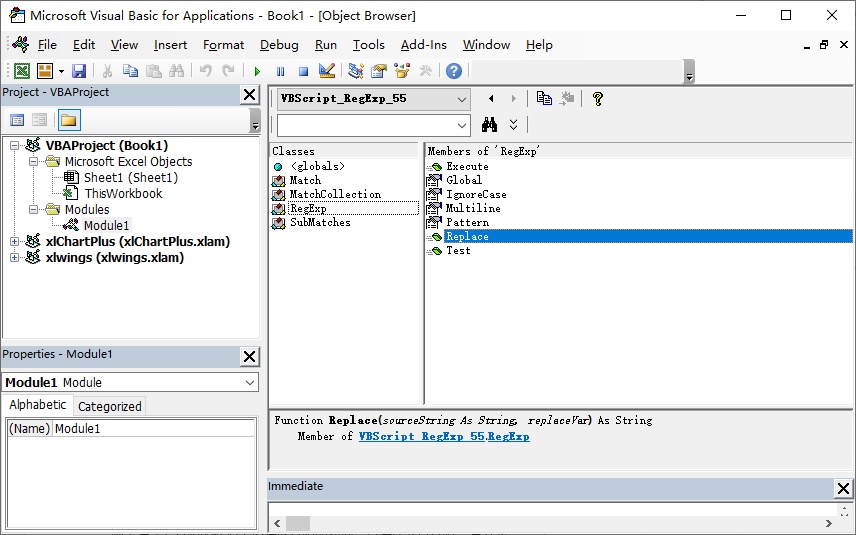
Figure 8-2
There are two ways to create a regex object: late binding and early binding.
Late binding: Declare the variable as Object type and use CreateObject to create the regex object:
Dim objReg As Object
Set objReg = CreateObject("VBScript.RegExp")
Early binding (two forms):
Dim objReg As RegExp
Set objReg = New RegExp
Or
Dim objReg As New RegExpBoth declare the variable directly as RegExp type. Compared to late binding, early binding has significantly better runtime efficiency, so it is usually preferred. Once the regex object is created, it can be combined with a regular expression to perform text search and replacement.
1. Searching
Use the RegExp object, specify the regular expression with the Pattern property, and execute the search with the Execute method. The rules for writing regular expressions will be detailed in Section 8.2; here we demonstrate with simple examples.
The results of Execute are stored in a MatchCollection collection. You can traverse each Match object (i.e., a match result) using For Each. By default, searching stops after the first match; setting the Global property of the regex object to True finds all matches; setting IgnoreCase to True makes the search case-insensitive.
The following code finds all non-digit characters in the string "A1B2C3":
Sub Test()
    Dim objReg As New RegExp
    Dim strT As String
    Dim mcT As MatchCollection
    Dim matT As Match
    strT = "A1B2C3"
    With objReg
        .Global = True
        .Pattern = "\D"
        Set mcT = .Execute(strT)
    End With
    For Each matT In mcT
        If matT <> " " Then Debug.Print matT.Value
    Next matT
End Sub
Running this procedure outputs the matches in the Immediate Window.
2. Replacing
Use the Replace method of the regex object to replace found content with a specified string. The following code finds all non-digit characters in "A1B2C3" and replaces them with an empty string (i.e., deletes them):
Sub Test2()
    Dim objReg As New RegExp
    Dim strT As String
    strT = "A1B2C3"
    With objReg
        .Global = True
        .Pattern = "\D"
        Debug.Print .Replace(strT, "")
    End With
End Sub
Running this procedure outputs the replaced result in the Immediate Window.
【Python】
In Python, functions provided by the re module can be used to directly search and replace strings with a given regular expression, or by creating a regex object and using its properties and methods. Search results are returned as Match objects, whose attributes and methods can be used for further display and processing.
The re module must be imported first:
>>> import re1. Searching
The re module provides four functions for different search operations: match, search, findall, and finditer. The first two return a single match object that meets the criteria; the latter two return all matching objects.
1) re.match function
re.match starts matching from the beginning of the given text and returns None if unsuccessful. Syntax:
re.match(pattern, string, flags=0)pattern: Regular expression for matching.
string: Text to search.
flags: Matching modifiers (see Table 8-1). Multiple flags can be combined with |, e.g., re.M | re.I.
Table 8-1 Settings of Flags
| Flag | Full Writing | Description |
|---|---|---|
| re.I | re.IGNORECASE | Case-insensitive matching |
| re.M | re.MULTILINE | Enable multiline mode |
| re.S | re.DOTALL | Make the dot match any character, including newline characters |
| re.L | re.LOCALE | Perform locale-aware matching |
| re.U | re.UNICODE | Parse characters according to the Unicode character set |
| re.X | re.VERBOSE | Support more flexible and detailed patterns, such as multiline, ignoring whitespace, adding comments, etc. |
If successful, it returns a Match object; otherwise None.
Example:
>>> import re
>>> a = 'abc123def456'
>>> m = re.match('abc', a)
>>> m
<re.Match object; span=(0, 3), match='abc'>
Case-sensitive example:
>>> b = 'aBC123dEf456'
>>> m = re.match('abc', b)
>>> m
>>> m2 = re.match('abc', b, re.I)
>>> m2
<re.Match object; span=(0, 3), match='aBC'>
2) re.search function
Unlike re.match, re.search looks through the entire string and returns the first successful match. Syntax is the same as re.match.
Example (case-insensitive search for "def"):
>>> a = 'aBC123dEf456'
>>> m = re.search('def', a, re.I)
>>> m
<re.Match object; span=(6, 9), match='dEf'>
3) re.findall function
Finds all substrings matching the regular expression and returns them as a list; returns an empty list if no match. Syntax same as re.match.
Example:
>>> a = 'aBC123dEf456abc789abC'
>>> m = re.findall('abc', a, re.I)
>>> m
['aBC', 'abc', 'abC']
4) re.finditer function
Same as re.findall but returns an iterator of match objects.
Example:
>>> a = 'aBC123dEf456abc789abC'
>>> m = re.finditer('abc', a, re.I)
>>> m
<callable_iterator object at 0x0000000005BF0F48>
>>> for i in m:
... print(i)
...
<re.Match object; span=(0, 3), match='aBC'>
<re.Match object; span=(12, 15), match='abc'>
<re.Match object; span=(18, 21), match='abC'>
2. Replacing
Replacement means substituting matched content with a given string. Use re.sub and re.subn.
1) re.sub function
Syntax:
re.sub(pattern, repl, string, count=0, flags=0)pattern: Regular expression.
repl: Replacement string (can be a function).
string: Original text.
count: Maximum replacements (0 = all).
flags: Matching modifiers.
Example:
>>> a = 'aBC123dEf456abc789abC'
>>> m = re.sub('abc', 'xyz', a, 0, re.I)
>>> m
'xyz123dEf456xyz789xyz'
2) re.subn function
Same as re.sub but returns a tuple: (new_string, number_of_replacements).
Example:
>>> a = 'aBC123dEf456abc789abC'
>>> m = re.subn('abc', 'xyz', a, 0, re.I)
>>> m
('xyz123dEf456xyz789xyz', 3)
You can also precompile a pattern with re.compile to create a Pattern object for repeated use.
Example:
>>> a = 'aBc123def456'
>>> p = re.compile('abc', re.I)
>>> m = p.match(a)
>>> m
<re.Match object; span=(0, 3), match='aBc'>