The Application object represents the Excel application itself and is the root object for other objects like Workbook, Worksheet, and Range.
The Application Object
To use the Excel object model, you first need to create an Application object.
Excel VBA In Excel VBA, Application directly refers to the Application object and does not require explicit creation. In many cases, it can be omitted.
To create an Application object in other applications (e.g., Word, PowerPoint), use:
Dim App As Object
Set xl = CreateObject("Excel.Sheet")
Set App = xl.Application
Python xlwings When using the xlwings package, the top-level function App() creates an App object:
>>> import xlwings as xw
>>> app = xw.App()
>>> app2 = xw.App()
To check the number of workbooks in app:
Excel VBA
Application.Workbooks.CountOr omit Application:
Workbooks.CountPython xlwings
>>> app.books.countPython xlwings API
>>> app.api.Workbooks.CountTo activate app2 (making it the current application) using the Python xlwings approach:
>>> app2.activate()The Apps object is a collection of all App objects:
>>> import xlwings as xw
>>> xw.apps
Use the add() method to create a new application (automatically activated):
>>> xw.apps.add()Use the active attribute to return the active application:
>>> xw.apps.activeUse the count attribute to return the number of applications:
>>> xw.apps.countEach Excel application has a unique PID (Process ID). Use the keys() method to retrieve all PIDs as a list:
>>> pid = xw.apps.keys()
>>> pid
[3672, 4056]
Reference a specific application using its PID (e.g., get the caption of the first application):
>>> xw.apps[pid[0]].api.Caption
'Workbook1 - Excel'
Note: For the Python xlwings approach, the App object lacks a Caption attribute; use the API syntax instead.
Use the kill() method to force an Excel application to exit by terminating its process:
>>> app.kill()Use the Quit() method to exit the application without saving any workbooks:
Excel VBA
Application.QuitPython xlwings
>>> app.quit()Position, Size, Caption, Visibility, and State Attributes
Each Excel application is a graphical window. The following attributes relate to the window:
Position: Left and Top define the coordinates of the window's top-left corner. Excel VBA:
Application.Left   '30.25
Application.Top    '95.25
Python xlwings API:
>>> app.api.Left
30.25
>>> app.api.Top
95.25
Size: Width and Height define the window's width and height. Excel VBA:
Application.Width   '635.25
Application.Height   '390.0
Python xlwings API:
>>> app.api.Width
635.25
>>> app.api.Height
390.0
Caption: The window title. Excel VBA:
Application.Caption 'Workbook1 - Excel'Python xlwings API:
>>> app.api.Caption
'Workbook1 - Excel'
Visibility: Visible returns or sets whether the window is visible (True = visible, False = hidden). Excel VBA:
Application.Visible 'TruePython xlwings API:
>>> app.api.Visible
True
State: WindowState defines the window state: minimized (xlMinimized, -4140), maximized (xlMaximized, -4137), or normal (xlNormal, -4143). Excel VBA:
Application.WindowState '-4143Python xlwings API:
>>> app.api.WindowState
-4143
To maximize the window:
Excel VBA
Application.WindowState = xlMaximizedPython xlwings API
>>> app.api.WindowState = xw.constants.WindowState.xlMaximizedOther Common Attributes
1. Screen Updating
Refreshing the graphical interface (redrawing) takes time. Setting ScreenUpdating to False disables redrawing, improving script speed. Reset to True after operations.
Excel VBA
Application.ScreenUpdating = FalsePython xlwings
>>> app.screen_updating = False2. Display Alerts
To avoid interruptions from warning dialogs during automation, set DisplayAlerts to False. Reset to True after tasks.
Excel VBA
Application.DisplayAlerts = FalsePython xlwings
>>> app.display_alerts = False3. Calling Worksheet Functions
Excel worksheet functions are powerful. Use the WorksheetFunction property to call them. For example, use CountIf to count values >8 in range B2:F5 (Figure 1-1).
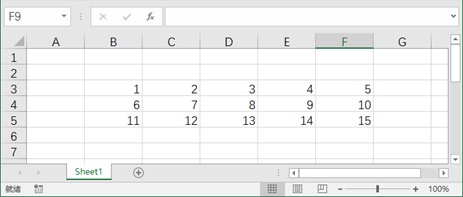
Figure 1-1
Excel VBA
WorksheetFunction.CountIf(Range("B2:F5"), ">8") 'Result: 7.0Python xlwings API
>>> app.api.WorksheetFunction.CountIf(app.api.Range('B2:F5'), '>8')
7.0