Regular expressions can be used to complete complex text search and replacement tasks. Since the content is relatively extensive, this section is introduced separately.
Using Regular Expressions in Python
In Python, functions provided by the re module can directly use specified regular expressions to perform string search, replacement, splitting, etc., on given text. Alternatively, you can first create a regular expression object and then use its attributes and methods to implement these operations. Search results are returned as match objects, which can be further displayed and processed using the attributes and methods provided by the object.
1 The re Module
The re module is used in Python to implement regular expression applications. This module provides a series of functions that can be used to achieve different forms of text search, replacement, and splitting.
Search
The re module provides 4 functions to implement different forms of search: match, search, findall, and finditer. The first two functions return a match object that meets the requirements, while the latter two return all match objects that meet the requirements. To use the re module, you must first import it:
import rere.match Function
The re.match function starts matching from the beginning of the given text. If the match fails, it returns None. Its syntax is:
re.match(pattern, string, flags=0)The meanings of the parameters are shown in Table 5-1.
Table 5-1 Parameters of the re.match Function
| Parameter | Description |
|---|---|
| pattern | The regular expression for matching |
| string | The given text |
| flags | Flags that specify the matching mode of the regular expression (e.g., case sensitivity) |
The flags parameter specifies the matching mode of the regular expression. Its values are shown in Table 5-2. If multiple flags are set, they are connected with a vertical bar (e.g., re.M | re.I).
Table 5-2 Flag Settings
| Flag | Full Name | Description |
|---|---|---|
| re.I | re.IGNORECASE | Case-insensitive matching |
| re.M | re.MULTILINE | Support multi-line matching |
| re.S | re.DOTALL | Make the dot(.) match any character(including newlines) |
| re.L | re.LOCALE | Locale-aware matching |
| re.U | re.UNICODE | Parse characters based on the Unicode character set |
| re.X | re.VERBOSE | Support more flexible and detailed patterns (e.g., multi-line, ignore whitespace, add comments) |
If the match is successful, re.match returns a Match object; otherwise, it returns None.
Example: Given a string and a substring "abc", use re.match to match.
In the worksheet shown in Figure 5-22, cell A2 contains a text. We need to use re.match with the substring "abc" for matching.
In cell B2, enter the following code in Python mode in the formula bar:
import re
a = xl("A2")
re.match('abc', a)
Press Ctrl+Enter: a Match object is returned. The string result is shown in cell C2 of Figure 5-22—the matched substring "abc" is found at positions 1 to 3 (0-indexed).
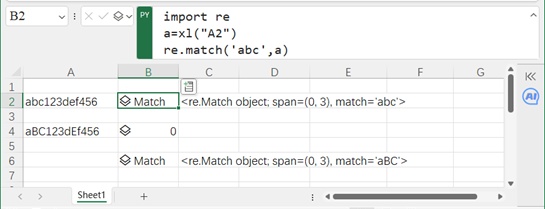
Figure 5-22
If the string has case differences (e.g., cell A4 contains mixed-case letters) but we use the same code:
import re
b = xl("A4")
re.match('abc', b)
Press Ctrl+Enter: cell B4 returns empty (match failed).
To enable case-insensitive matching, use the re.I flag. In cell B6, enter:
import re
c = xl("A4")
re.match('abc', c, re.I)
Press Ctrl+Enter: the match succeeds, returning "aBC".
re.search Function
Unlike re.match, re.search searches the entire given string and returns the first successful match object. Its syntax is:
re.search(pattern, string, flags=0)The parameters are the same as re.match (see above).
Example: In the worksheet shown in Figure 5-23, cell A2 contains a string. We need to find "def" (case-insensitive) and return the first result.
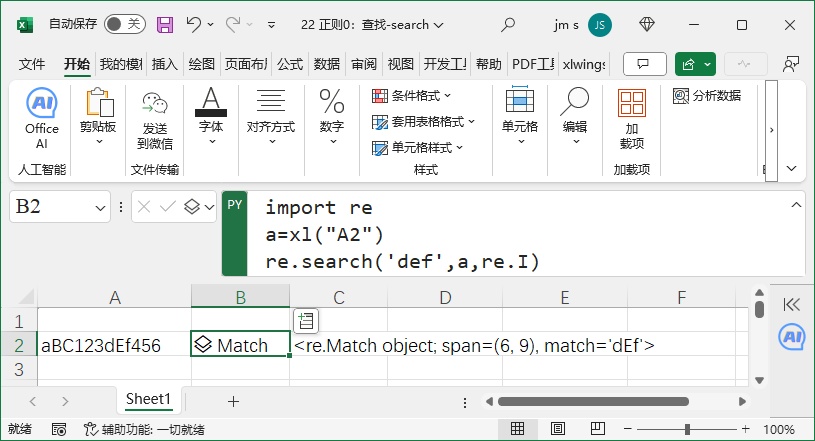
Figure 5-23
In cell B2, enter:
import re
a = xl("A2")
re.search('def', a, re.I)
Press Ctrl+Enter: the match succeeds, returning a Match object containing "dEf".
re.findall Function
re.findall finds all substrings in the given string that match the regular expression and returns them as a list. If no matches are found, it returns an empty list.
Note: re.match and re.search only match once; re.findall finds all results.
Its syntax is:
re.findall(pattern, string, flags=0)The parameters are the same as re.match (see above).
Example: In the worksheet shown in Figure 5-24, cell A2 contains a string. We need to find all occurrences of "abc" (case-insensitive).

Figure 5-24
In cell C2, enter:
import re
a = xl("A2")
re.findall('abc', a, re.I)
Press Ctrl+Enter: the match succeeds, and the results are returned as a list (e.g., ["aBC", "abc", "abC"]).
re.finditer Function
Like re.findall, re.finditer finds all matching substrings. However, it returns the results as an iterator (instead of a list). Its syntax is:
re.finditer(pattern, string, flags=0)The parameters are the same as re.match (see above).
Example: In the worksheet shown in Figure 5-25, cell A2 contains a string. We need to find all occurrences of "abc" (case-insensitive).
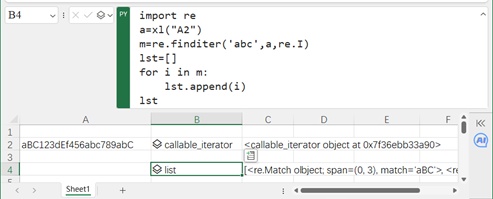
Figure 5-25
In cell B2, enter:
import re
a = xl("A2")
re.finditer('abc', a, re.I)
Press Ctrl+Enter: a callable_iterator object is returned.
To view the results as a list of Match objects, use:
import re
a = xl("A2")
m = re.finditer('abc', a, re.I)
lst = []
for i in m:
    lst.append(i)
lst
Press Ctrl+Enter: the list of Match objects is returned.
2 Replacement
Replacement means replacing found objects with a given object. Use re.sub and re.subn for replacement.
re.sub Function
Its syntax is:
r = re.sub(pattern, repl, string, count=0, flags=0)Parameter meanings:
pattern: The regular expression for matching.
repl: The string used for replacement (can be a function).
string: The original string.
count: Maximum number of replacements (default: 0 = replace all).
flags: Matching mode flags.
Returns the replaced result to variable r.
Example: In the worksheet shown in Figure 5-26, cell A2 contains a string. We need to replace all occurrences of "abc" (case-insensitive) with "xyz".
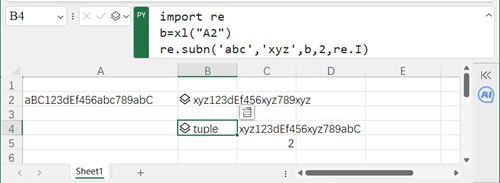
Figure 5-26
In cell B2, enter:
import re
a = xl("A2")
re.sub('abc', 'xyz', a, 0, re.I)
Press Ctrl+Enter: the replacement succeeds (e.g., "aBC123dEf456abc789abC" → "xyz123dEf456xyz789xyz").
re.subn Function
re.subn works the same as re.sub, but returns a tuple with two values:
The replaced string.
The number of replacements performed.
Its syntax is:
r = re.subn(pattern, repl, string, count=0, flags=0)The parameters are the same as re.sub (see above).
Example: In the worksheet shown in Figure 5-26, use re.subn to replace the first 2 occurrences of "abc" (case-insensitive) with "xyz".
In cell B4, enter:
import re
b = xl("A2")
re.subn('abc', 'xyz', b, 2, re.I)
Press Ctrl+Enter: the result is a tuple like ("xyz123dEf456xyz789abC", 2).
3 Splitting
re.split splits the original string using the matched substring as a delimiter and returns the result as a list. Its syntax is:
r = re.split(pattern, string, maxsplit=0, flags=0)Parameter meanings:
pattern: The regular expression for matching.
string: The original string.
maxsplit: Maximum number of splits (default: 0 = unlimited).
flags: Matching mode flags.
Returns the split result as a list r (elements are split strings).
Example: In the worksheet shown in Figure 5-27, cell A2 contains a string. We need to split the string using "&" as a delimiter.

Figure 5-27
In cell B2, enter:
import re
a = xl("A2")
re.split('&', a)
Press Ctrl+Enter: returns a list (e.g., ["aBC", "123dEf", "456abc", "789abC"]).
To limit splits to 2 times, use:
import re
b = xl("A2")
re.split('&', b, 2)
Press Ctrl+Enter: returns a list with 3 elements (e.g., ["aBC", "123dEf", "456abc&789abC"]).
2 Match Object
A Match object is returned by re.match, re.search, and re.finditer. It contains information about the match (e.g., original string, match position). Use its attributes and methods to access this information.
Attributes of Match Object
The attributes provide information about the match:
| Attribute | Description |
|---|---|
| string | The original string |
| re | The regular expression used |
| pos | Starting index of the search |
| endpos | Ending index of the search |
| lastindex | Index of the last captured group (or None if no groups) |
| lastgroup | Alias of the last captured group (or None if no alias/group) |
Example: In the worksheet shown in Figure 5-28, cell A2 contains a string. Use re.search with the regex "(\d+)(\w+)" (two groups: digits + word characters) to get a Match object and view its attributes.
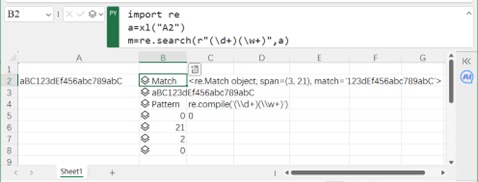
Figure 5-28
In cell B2, enter:
import re
a = xl("A2")
m = re.search(r"(\d+)(\w+)", a)
Press Ctrl+Enter: returns a Match object m.
View attributes:
m.string: Returns the original string (e.g., "aBC123dEf456abc789abC").
m.re: Returns the compiled regex (e.g., re.compile('(\\d+)(\\w+)')).
m.pos: Returns the starting index (e.g., 0).
m.endpos: Returns the ending index (e.g., len(a)).
m.lastindex: Returns the last group index (e.g., 2).
m.lastgroup: Returns None (no aliases).
Methods of Match Object
Methods retrieve detailed information about groups (content, position, etc.):
| Method | Description |
|---|---|
| group([group1, …]) | Get one or more captured groups(returns a tuple for multiple groups). group(0) = entire match. |
| groups([default]) | Return all captured groups as a tuple (use default for unmatched groups). |
| groupdict([default]) | Return a dictionary of aliased groups (key: alias, value: captured string). |
| start([group]) | Return the start index of a group (default: 0 = entire match). |
| end([group]) | Return the end index of a group (default: 0 = entire match). |
| span([group]) | Return(start(group), end(group)) for a group(default: 0). |
| expand(template) | Substitute groups into template (use \id or \g |
Example: In the worksheet shown in Figure 5-29, use re.search with "(\d+)(\w+)" to get a Match object and test its methods.
In cell B2, enter:
import re
a = xl("A2")
m = re.search(r"(\d+)(\w+)", a)
Press Ctrl+Enter: returns m.
Test methods:
m.group(1): Returns the first group (e.g., "123").
m.group(2): Returns the second group (e.g., "dEf456abc789abC").
m.group(1, 2): Returns both groups as a tuple (e.g., ("123", "dEf456abc789abC")).
m.groups(): Same as above.
m.groupdict(): Returns an empty dict (no aliases).
m.start(1): Returns the start index of group 1 (e.g., 3).
m.end(1): Returns the end index of group 1 (e.g., 6).
m.span(1): Returns (3, 6).
m.expand(r'\2\1'): Rearranges groups (e.g., "dEf456abc789abC123").
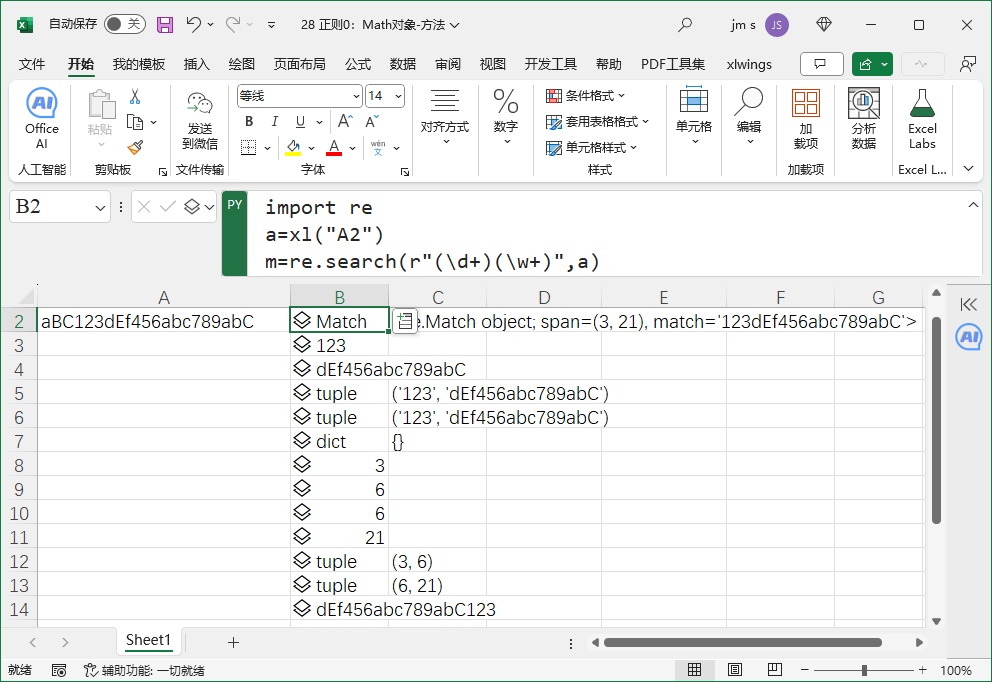
Figure 5-29
3 Pattern Object
The re.compile function creates a Pattern object (compiled regular expression), which can also be used for search, replacement, and splitting.
Creating a Pattern Object
Use re.compile to create a Pattern object. Its syntax is:
p = re.compile(pattern, flags)pattern: The regular expression string.
flags: Matching mode flags.
p: The created Pattern object.
Example: In the worksheet shown in Figure 5-30, cell A2 contains a string. Compile a Pattern object for "abc" (case-insensitive).
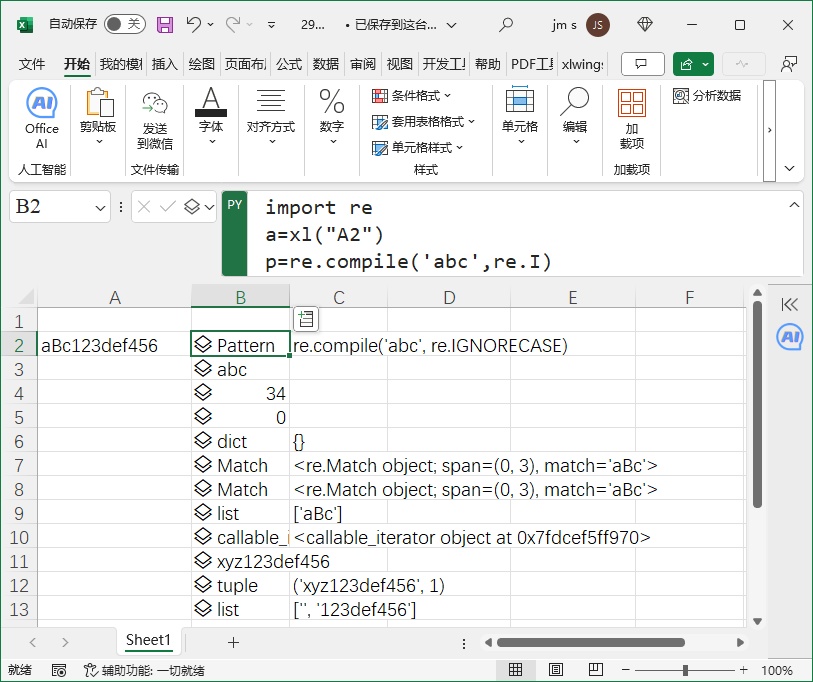
Figure 5-30
In cell B2, enter:
import re
a = xl("A2")
p = re.compile('abc', re.I)
Press Ctrl+Enter: returns a Pattern object p.
Attributes and Methods of Pattern Object
Attributes:
pattern: The original regex string.
flags: Matching mode (numeric value).
groups: Number of groups in the regex.
groupindex: Dictionary of aliased groups (key: alias, value: group index).
Methods: Correspond to re module functions but support pos and endpos (to specify the search range in the original string). See Table 5-3.
Table 5-3 Methods of Pattern Object
| Method | Description | Corresponding re Function |
|---|---|---|
| match(string[, pos[, endpos]]) | Match from the start of the string(or from pos to endpos if specified) |
re.match |
| search(string[, pos[, endpos]]) | Search the entire string (or pos to endpos) for the first match | re.search |
| findall(string[, pos[, endpos]]) | Find all matches (return as a list) | re.findall |
| finditer(string[, pos[, endpos]]) | Find all matches (return as an iterator) | re.finditer |
| sub(repl, string[, count]) | Replace matches with repl | re.sub |
| subn(repl, string[, count]) | Replace matches and return a tuple (replaced_string, count) | re.subn |
| split(string[, maxsplit]) | Split the string using matches as delimiters (return as a list) | re.split |
Note: Except for split(), Pattern object methods have two additional parameters (pos and endpos) compared to their corresponding re module functions. These parameters specify the start and end positions for searching/replacing in the original string.
Example (Continued): Using the Pattern object p created earlier (for "abc", case-insensitive):
p.pattern: Returns the original regex string ("abc").
p.flags: Returns the flag value (e.g., re.IGNORECASE as a numeric value).
p.groups: Returns 0 (no groups in the regex).
p.groupindex: Returns an empty dict (no aliased groups).
p.match(a): Returns a Match object (matches "aBc" at the start of a).
p.search(a): Returns the first Match object.
p.findall(a): Returns all matches as a list (e.g., ["aBc"]).
p.finditer(a): Returns an iterator of Match objects.
p.sub('xyz', a): Replaces all matches with "xyz" (e.g., "xyz123def456").
p.subn('xyz', a, 0): Returns a tuple (e.g., ("xyz123def456", 1)).
p.split(a): Splits the string using "abc" as a delimiter (returns a list).
Rules for Writing Regular Expressions
Section 5.3.1 explained how to use a given regular expression in Python. This section explains how to write regular expressions (syntax rules).
1 Metacharacters
Metacharacters are characters with special meanings in regular expressions (beyond their literal meaning). For example:
\d represents digits.
\s represents whitespace.
Common metacharacters are listed in Table 5-4.
Table 5-4 Common Metacharacters
| Metacharacter | Description | Metacharacter | Description |
|---|---|---|---|
| . | Match any character except a newline | ^ | Match the start of the string |
| \w | Match letters, digits, underscores, or Chinese characters | $ | Match the end of the string |
| \s | Match any whitespace (space, tab, newline, etc.) | \n | Match a newline |
| \d | Match digits (0-9) | \r | Match a carriage return |
| \b | Match the start/end of a word | \t | Match a tab |
To exclude specific characters, use negation metacharacters (Table 5-5).
Table 5-5 Negation Metacharacters
| Negation Metacharacter | Description |
|---|---|
| \W | Match any character not in \w (non-letter, non-digit, etc.) |
| \S | Match any character not in \s (non-whitespace) |
| \D | Match any character not in \d (non-digit) |
| \B | Match a position not at the start/end of a word |
| [^x] | Match any character except x |
| [^aeiou] | Match any character except vowels (a, e, i, o, u) |
Examples:
\d matches digits: re.findall(r'\d', "BC 101PW%") returns ['1', '0', '1'].
\bC\d matches C followed by a digit, where C is at the start of the string or preceded by whitespace: re.sub(r'\bC\d', '', "C5 dC56 C5") returns " dC56 " (removes C5 at the start and C5 after a space).
^\d+ matches one or more digits at the start of the string: re.findall(r'^\d+', "12345my09") returns ['12345'].
\d+\D$ matches one or more digits followed by a non-digit at the end of the string: re.findall(r'\d+\D$', "12345my09W") returns ['09W'].
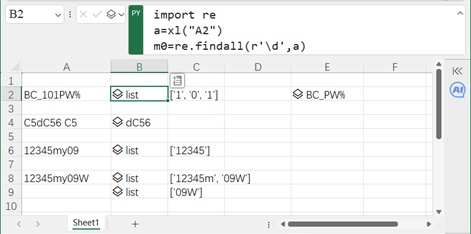
Figure 5-31
2 Repetition
Repetition matches multiple instances of a character/class. Use the following metacharacters (Table 5-6).
Table 5-6 Repetition Metacharacters
| Metacharacter | Description | Metacharacter | Description |
|---|---|---|---|
| * | Repeat 0 or more times (equivalent to {0,}) | {n} | Repeat exactly n times |
| + | Repeat 1 or more times (equivalent to {1,}) | {n,} | Repeat n or more times |
| ? | Repeat 0 or 1 time (equivalent to {0,1}) | {n,m} | Repeat between n and m times (inclusive) |
Examples:
W\d* matches W followed by 0 or more digits: re.findall(r'W\d*', "W123YZW85CW0DFWU") returns ['W123', 'W85', 'W0', 'W'].
W\d+ matches W followed by 1 or more digits: re.findall(r'W\d+', "W123YZW85CW0DFWU") returns ['W123', 'W85', 'W0'] (excludes W with no digits).
\d+\.?\d+ matches numbers with optional decimal points: re.findall(r'\d+\.?\d+', "W10.23RWA908C5..1") returns ['10.23', '908'].
\d{3} matches exactly 3 digits: re.findall(r'\d{3}', "WT123Pq89C") returns ['123'].
\d{2,3} matches 2 or 3 consecutive digits: re.findall(r'\d{2,3}', "WT123Pq89C") returns ['123', '89'].
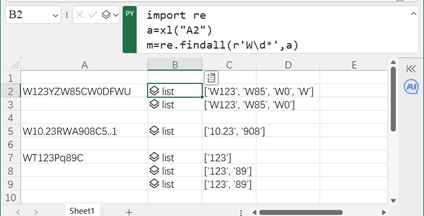
Figure 5-32
3 Character Classes
Use square brackets [] to define a set of characters to match (or exclude). Rules are listed in Table 5-7.
Table 5-7 Usage of Square Brackets
| Format Example | Description |
|---|---|
| [adwkf] | Match any single character in the set (a, d, w, k, f) |
| [^adwkf] | Match any single character not in the set |
| [b-f] | Match any character in the range b to f (inclusive) |
| [^b-f] | Match any character not in the range b to f |
| [2-5] | Match any digit from 2 to 5 |
| [2-46-9] | Match digits 2-4 or 6-9 |
| [a-w2-5A-W] | Match lowercase a-w, digits 2-5, or uppercase A-W |
| [一-龥] or [\u4e00-\u9fa5] | Match Chinese characters (Unicode ranges) |
Examples:
[AEIOU] matches uppercase vowels: re.findall('[AEIOU]', "ABCDEFGHIJKLMNOPQRSTUVWXYZ") returns ['A', 'E', 'I', 'O', 'U'].
[^AEIOU] matches non-vowels: returns all other letters.
[G-T] matches uppercase letters from G to T: returns ['G', 'H', 'I', 'J', 'K', 'L', 'M', 'N', 'O', 'P', 'Q', 'R', 'S', 'T'].
[1-5G-T] matches digits 1-5 or letters G-T: re.findall('[1-5G-T]', "ABCDEFGHIJKLMNOPQRSTUVWXYZ1234567890") returns ['G', 'H', 'I', 'J', 'K', 'L', 'M', 'N', 'O', 'P', 'Q', 'R', 'S', 'T', '1', '2', '3', '4', '5'].
[\u4e00-\u9fa5] matches Chinese characters: re.findall('[\u4e00-\u9fa5]', "123中hwo文tr89字符") returns ['中', '文', '字', '符'].
re.sub('[\u4e00-\u9fa5]', '', "123中hwo文tr89字符") removes Chinese characters, returning "123hwo tr89".

Figure 5-33
4 Branch Conditions
Use | to separate multiple patterns (match any of the patterns).
Example: Match "ABC" or a substring starting with W followed by digits: re.findall(r'ABC|W\d+', "ABC1234W89T") returns ['ABC', 'W89'].
Match numbers followed by "公斤", "kg", or "千克": re.findall(r'\d+(公斤[1](@context-ref?id=1)|千克|kg)', "10公斤20kg 30千克") returns ['10公斤', '20kg', '30千克'].

Figure 5-34
5 Capturing Groups and Non-Capturing Groups
Groups are defined with parentheses (). By default, groups are capturing (assigned a number, stored in memory, and retrievable via group()).
Capturing Groups: Automatically numbered from left to right (outer groups first). Use \1, \2, etc., to backreference groups. Example: (WT)\d+\1 matches WT + digits + WT (e.g., "WT12389WT").
Non-Capturing Groups: Add ?: at the start of the group (e.g., (?:ab)). These groups do not get numbered or stored in memory (saves resources). Example: (?:ab)(CD)\d+\1 matches ab + CD + digits + CD (but only CD is captured: m.groups() returns ('CD',)).
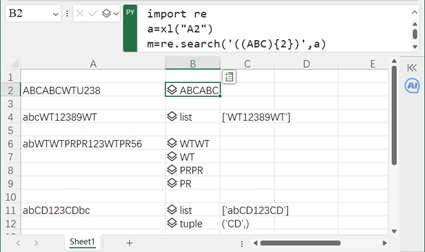
Figure 5-35
6 Zero-Width Assertions
Zero-width assertions match a position (not characters) based on surrounding content. Two types:
Positive Lookahead: (?=exp) – Match the position before exp. Example: \d+(?=公斤) matches digits before "公斤" (e.g., "10公斤20公斤" → ['10', '20']).
Positive Lookbehind: (?<=exp) – Match the position after exp. Example: (?<=同学|战友|师兄)\w+ matches names after "同学", "战友", or "师兄" (e.g., "同学李海战友王刚师兄张三" → ['李海', '王刚', '张三']).

Figure 5-36
7 Negative Zero-Width Assertions
Negative assertions match a position where the surrounding content does not match exp. Two types:
Negative Lookahead: (?!exp) – Match the position where the next content is not exp. Example: \w123(?![A-Z]) matches word123 where the next character is not uppercase (e.g., "h123" in "5123Wgh123hp123456").
Negative Lookbehind: (?<!exp) – Match the position where the previous content is not exp. Example: (?<![a-z])\d{5} matches 5-digit numbers not preceded by a lowercase letter (e.g., "12345" in "abcD1234567").

Figure 5-37
8 Greediness vs. Laziness
Greedy Matching: Matches as many characters as possible (default for *, +, ?, {n,m}). Example: \s.+\s matches from the first space to the last space (e.g., " 123 abc53 59wt " → [' 123 abc53 59wt ']).
Lazy Matching: Add ? to match as few characters as possible. Example: \s.+?\s matches each space-separated substring (e.g., " 123 abc53 59wt " → [' 123 ', ' abc53 ', ' 59wt ']).
Common lazy patterns (Table 5-8):
Table 5-8 Lazy Matching Patterns
| Pattern | Description |
|---|---|
| *? | Repeat 0+ times (as few as possible) |
| +? | Repeat 1+ times (as few as possible) |
| ?? | Repeat 0 or 1 time (as few as possible) |
| {n,m}? | Repeat n to m times (as few as possible) |
| {n,}? | Repeat n+ times (as few as possible) |
Using Regular Expressions in pandas
Sections 5.3.1 and 5.3.2 focus on single-string processing. For batch processing of a column of strings, use pandas (faster and more concise than Excel’s formula filling).
Example: Extract Phone Numbers from a Column
Given a column of strings (A1:A6) containing phone numbers (11 digits starting with 1), extract all phone numbers.
Method 1: Excel Formula Filling (Inefficient)
In cell B1, enter:
import re
a = xl("A1")
re.findall('1[0-9]{10}', a)
Double-click the fill handle to copy the formula to B2:B6. This works but is slow for large datasets.
Method 2: pandas (Efficient)
In cell B1, enter:
df = xl("A1:A6")
df[0].str.extract('(1[0-9]{10})')
Press Ctrl+Enter: Returns all phone numbers in column B (Figure 5-40).
Key Notes:
Use str.extract() to extract groups (enclose the target pattern in parentheses).
Other useful pandas string methods: str.extractall() (extract all matches), str.match() (match entire string), str.findall() (find all matches), str.contains() (check for presence), str.split() (split), str.replace() (replace).
This concludes the introduction to regular expressions in Python and pandas.