In Python, NumPy and SciPy packages enable most linear algebra operations. This section covers matrix determinants, vector operations, matrix operations, and matrix decomposition.
Determinants
Use the det function from numpy.linalg to compute the determinant of a matrix.
As shown in Figure 8-7, enter matrix data in cells A1:C3. Click cell F1, enter =PY(, and input:
a = xl("A1:C3").values  # Get matrix values(returns a DataFrame; use .values for the array)
np.linalg.det(a)         # Compute determinant
Press Ctrl+Enter. Cell F1 outputs the determinant of the first matrix (Figure 8-7).
For the second matrix (cells A5:C7, a singular matrix), click cell F5, enter =PY(, and input:
a = xl("A5:C7").values
np.linalg.det(a)
Press Ctrl+Enter. Cell F5 outputs 0 (since the matrix is singular) (Figure 8-7).

Figure 8-7 Calculating Matrix Determinants
Vector Operations
Vectors and matrices are mathematical concepts; arrays are computational concepts. A vector is a 1D array (row/column vector), and a matrix is a 2D array. Series and DataFrame are indexed 1D/2D arrays (structured arrays).
As shown in Figure 8-8, enter the first vector in A1:E1 and the second vector in A2:E2. Click cell B4, enter =PY(, and input:
x = xl("A1:E1")          # Get first vector(returns a DataFrame)
y = xl("A2:E2")          # Get second vector(returns a DataFrame)
x = x.values[0]           # Extract 1D array from DataFrame
y = y.values
x + y                     # Vector addition
Press Ctrl+Enter. Cell B4 outputs the sum of the vectors (Figure 8-8).
For vector subtraction, click cell B5, enter =PY(, and input:
x = xl("A1:E1").values
y = xl("A2:E2").values
x - y
Press Ctrl+Enter. Cell B5 outputs the difference (Figure 8-8).
For scalar multiplication (multiply the first vector by 10), click cell B6, enter =PY(, and input:
x = xl("A1:E1").values
x * 10
Press Ctrl+Enter. Cell B6 outputs the scaled vector (Figure 8-8).
For dot product, click cell B7, enter =PY(, and input:
x = xl("A1:E1").values
y = xl("A2:E2").values
np.dot(x, y)  # Dot product: sum of element-wise products
Press Ctrl+Enter. Cell B7 outputs the dot product (326) (Figure 8-8).

Figure 8-8 Vector Operations
Matrix Arithmetic
Matrix arithmetic includes addition, subtraction, multiplication, element-wise multiplication, division, and element-wise division.
As shown in Figure 8-9, enter the first matrix in A1:B2 and the second matrix in D1:E2.
Matrix Addition: Click cell B4, enter =PY(, and input:
x = xl("A1:B2").values
y = xl("D1:E2").values
np.add(x, y)  # Element-wise addition
Press Ctrl+Enter. Output: [[7 4], [13 9]] (Figure 8-9).
Matrix Subtraction: Click cell B5, enter =PY(, and input:
np.subtract(x, y)Press Ctrl+Enter. Output: [[-5 2], [-5 3]] (Figure 8-9).
Element-wise Multiplication: Click cell B6, enter =PY(, and input:
np.multiply(x, y) # Element-wise productPress Ctrl+Enter. Output: [[6 3], [36 18]] (Figure 8-9).
Matrix Multiplication: Click cell B7, enter =PY(, and input:
np.dot(x, y) # Matrix productPress Ctrl+Enter. Output: [[33 10], [78 22]] (Figure 8-9).
Element-wise Division: Click cell B8, enter =PY(, and input:
np.divide(x, y) # Element-wise divisionPress Ctrl+Enter. Output: [[0.166..., 3.], [0.444..., 2.]] (Figure 8-9).
Matrix Division: Click cell B9, enter =PY(, and input:
z = np.linalg.inv(x)  # Inverse of x
np.dot(z, y)          # Equivalent to x⁻¹ · y(matrix division)
Press Ctrl+Enter. Output: [[-1.5 0.5], [2.5 0.166...]] (Figure 8-9).
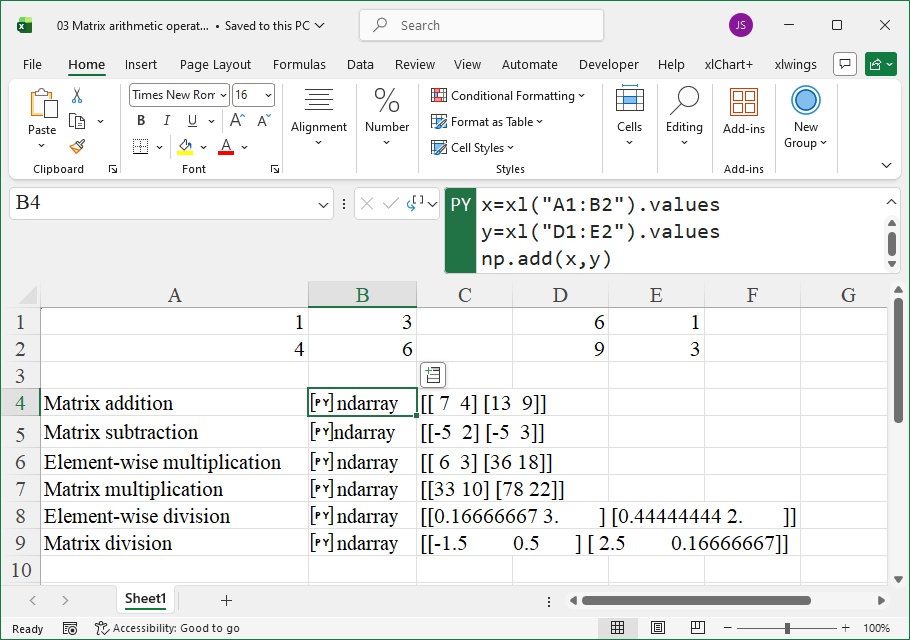
Figure 8-9 Matrix Arithmetic
More Matrix Operations
This section covers matrix transposition, inversion, and reshaping.
As shown in Figure 8-10, enter the first matrix in A1:C3 and the second matrix in E1:H3.
Transposition: Click cell B5, enter =PY(, and input:
a = xl("A1:C3").values
np.transpose(a)  # Transpose the matrix
Press Ctrl+Enter. Output: [[1 2 4], [2 5 10], [0 -1 -1]] (Figure 8-10).
Inversion: Click cell B6, enter =PY(, and input:
np.linalg.inv(a) # Inverse of the matrixPress Ctrl+Enter. Output: [[5 2 -2], [-2 -1 1], [0 -2 1]] (Figure 8-10).
Reshaping: Click cell B7, enter =PY(, and input:
a = xl("E1:H3").values
np.reshape(a, [2, 6])  # Reshape to 2 rows × 6 columns
Press Ctrl+Enter. Output: [[1 4 7 10 2 5], [8 11 3 6 9 12]] (Figure 8-10).
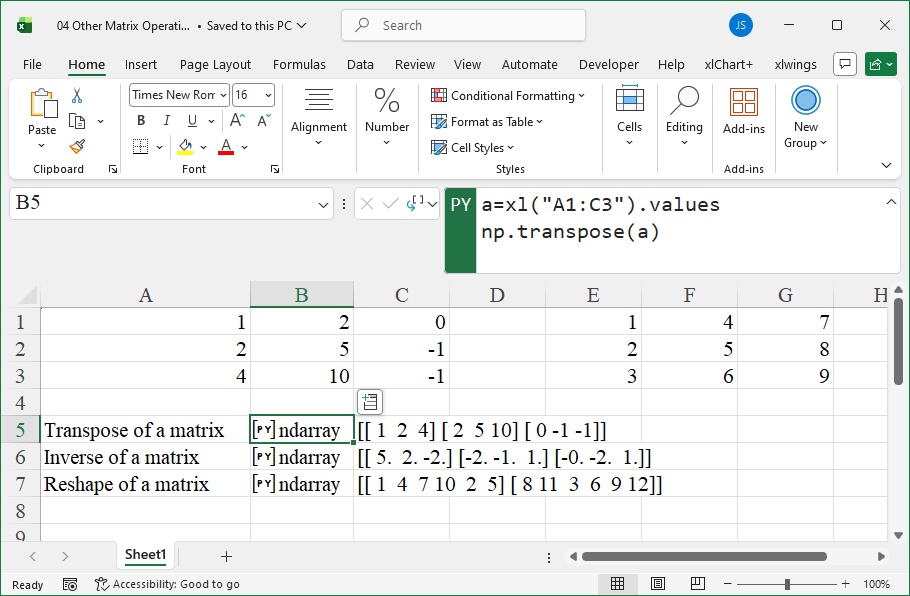
Figure 8-10 Matrix Transposition, Inversion, and Reshaping
Matrix Decomposition
This section covers LU decomposition and QR decomposition:
LU decomposition: Factorizes a matrix into upper/lower triangular matrices (basis for Gaussian elimination).
QR decomposition: Factorizes a matrix into an orthogonal matrix
and an upper triangular matrix
.
As shown in Figure 8-11, enter the matrix in A1:C3.
LU Decomposition: Click cell B5, enter =PY(, and input:
import scipy as sp
a = xl("A1:C3").values
r = sp.linalg.lu(a)  # LU decomposition
Press Ctrl+Enter. Output: Tuple containing permutation matrix
, lower triangular matrix
, and upper triangular matrix
(Figure 8-11).
QR Decomposition: Click cell B6, enter =PY(, and input:
r = sp.linalg.qr(a) # QR decompositionPress Ctrl+Enter. Output: Tuple containing orthogonal matrix
and upper triangular matrix
(Figure 8-11).
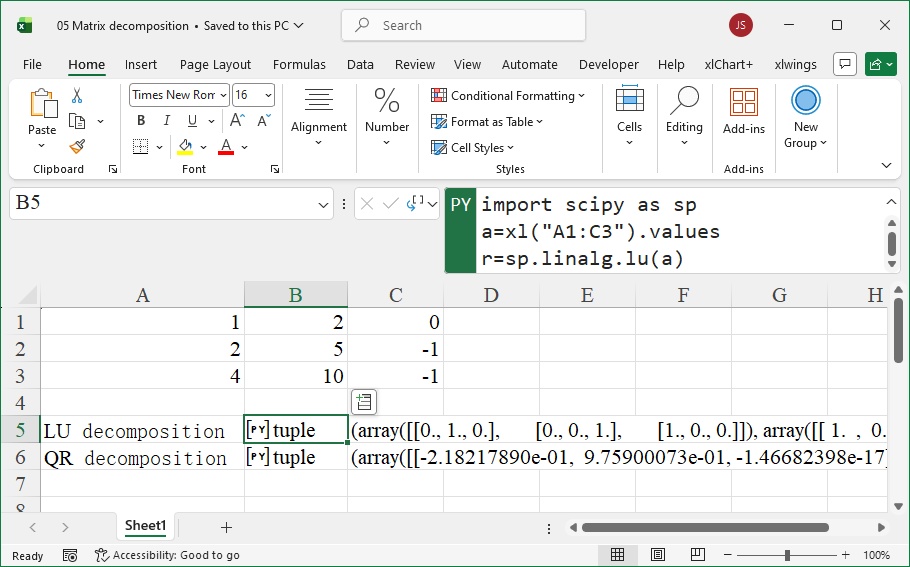
Figure 8-11 Matrix Decomposition