When outputting data such as numbers, strings, and dates, it is often necessary to display them in a specified format. This section introduces string formatting output.
Implementing String Formatting Output
[Excel VBA] In Excel VBA, the Format function is used for formatted string output. Its syntax is:
strA = Format(strString, strFormat)
strString: The original string.
strFormat: The format specification string.
strA: The formatted string.
Common formats for the Format function are listed in Table 6-4.
Table 6-4 Formats for the Format Function
| Format | Description |
|---|---|
| General Number | Plain number; removes thousand separators and trailing zeros. |
| Currency | Currency type; adds thousand separators and currency symbol; 2 decimal places. |
| Fixed | Number with 2 decimal places. |
| Standard | Thousand separators and 2 decimal places. |
| Percent | Percentage with 2 decimal places. |
| Scientific | Scientific notation. |
| Yes/No | Returns "Yes" if non-zero; otherwise "No". |
| True/False | Returns "True" if non-zero; otherwise "False". |
| "" or omitted | Returns original string, removing leading/trailing zeros around decimal. |
| 0 | Placeholder; pads with zeros if insufficient length. |
| # | Placeholder; does not pad if insufficient length. |
| % | Converts to percentage (multiplies by 100). |
| \ | Forces display of a character. |
| ; | Separates segments for different formats. |
| General Date | Basic date/time (e.g., 2021/5/23 11:05:12). |
| Long Date | OS-defined long date (e.g., 2021年5月23日). |
| Medium Date | OS-defined medium date (e.g., 21-05-23). |
| Short Date | OS-defined short date (e.g., 2021-5-23). |
| Long Time | OS-defined long time (e.g., 11:05:12). |
| Medium Time | 12-hour format with AM/PM, no seconds (e.g., 11:05 AM). |
| Short Time | 24-hour format, no seconds (e.g., 11:05). |
| c | National standard date/time (e.g., 2021/5/23 11:05:12). |
| y | Day of year (1–366, e.g., 100). |
| yy | 2-digit year (00–99, e.g., 21). |
| yyy | Combines yy and y (e.g., 21100). |
| yyyy | 4-digit year (0100–9999, e.g., 2021). |
| d | Day of month (1–31, e.g., 2). |
| dd | Same as d, but pads with zero if <10 (e.g., 02). |
| ddd | 3-letter weekday (e.g., "Sat"). |
| dddd | Full weekday name (e.g., "Saturday"). |
| ddddd | Standard date (e.g., 2021/5/23). |
| dddddd | Long date (e.g., 2021年5月23日). |
| w | Day of week (Sunday=1, e.g., 6). |
| ww | Week of year (e.g., 12). |
| m | Month (or minutes if used in time, e.g., 5). |
| mm | Month with leading zero if <10 (or minutes, e.g., 05). |
| mmm | 3-letter month (e.g., "May"). |
| mmmm | Full month name (e.g., "May"). |
| h, hh | Hour (0–23, e.g., 3, 03). |
| n, nn | Minute (0–59, e.g., 9, 09). |
| s, ss | Second (0–59, e.g., 5, 05). |
Examples (sample file: Samples\ch06\Excel VBA\FormattedOutput.xlsm):
Sub Test()
    Debug.Print Format("7,294,269.60", "General Number")   ' 7294269.6
    Debug.Print Format("12.69", "0.0000")                 ' 12.6900
    Debug.Print Format("12.69", "#.####")                ' 12.69
    Debug.Print Format("1.269", "0.00%")                 ' 126.90%
    Debug.Print Format("12345.6098", "Currency")          ' ¥12,345.61
    Debug.Print Format("35267", "Fixed")                 ' 35267.00
    Debug.Print Format("7294269.609", "Standard")        ' 7,294,269.61
    Debug.Print Format("0.30", "Percent")                ' 30.00%
    Debug.Print Format("0", "Yes/No")                    ' No
    Debug.Print Format("2021-5-20 13:14:22", "General Date") ' 2021/5/20 13:14:22
    Debug.Print Format("2021-5-20 13:14:22", "Short Date")    ' 2021/5/20
    Debug.Print Format("2021-5-20 13:14:22", "Long Time")     ' 13:14:22
End Sub
[Python] When using print, specify formats with placeholders or the format function.
Basic Placeholder Syntax:
print('placeholder1 placeholder2' % (value1, value2))Common placeholders (Table 6-5):
Table 6-5 Common String Placeholders in Python
| Placeholder | Description |
|---|---|
| %c | Character and ASCII code. |
| %s | String. |
| %d | Integer. |
| %o | Octal number. |
| %x | Hexadecimal (lowercase). |
| %X | Hexadecimal (uppercase). |
| %f | Floating-point (specify precision). |
| %e | Scientific notation (lowercase exponent). |
| %E | Scientific notation (uppercase exponent). |
| %g | Auto-selects %f or %e. |
| %G | Auto-selects %f or %E. |
| %p | Variable address in hexadecimal. |
Examples:
>>> print('hello %s' % 'python')                     # hello python
>>> print('%s %s %d' % ('hello', 'python', 2021))     # hello python 2021
>>> print('%+10.5f' % 3.1415927)                     # +3.14159 (width 10, 5 decimals)
>>> print('%010.5f' % 3.1415927)                     # 0003.14159 (pad with zeros)
Using format Function: More flexible than % placeholders.
>>> print('Unspecified order: {} {}'.format('hello', 'python'))  # hello python
>>> print('Specified order: {1} {0}'.format('hello', 'python'))  # python hello
>>> print('Repeat: {0} {1} {0} {1}'.format('hello', 'python'))   # hello python hello python
>>> print('Float: {:.2f}'.format(3.1415))                      # 3.14
>>> print('Percentage: {:.3%}'.format(0.12))                   # 12.000%
>>> print('Named args: {name}, {age}'.format(age=30, name=';Zhang San'))  # Zhang San, 30
Example: Retain 4 Decimal Places
Given data in column B (Figure 6-2), retain 4 decimal places and output to column D.
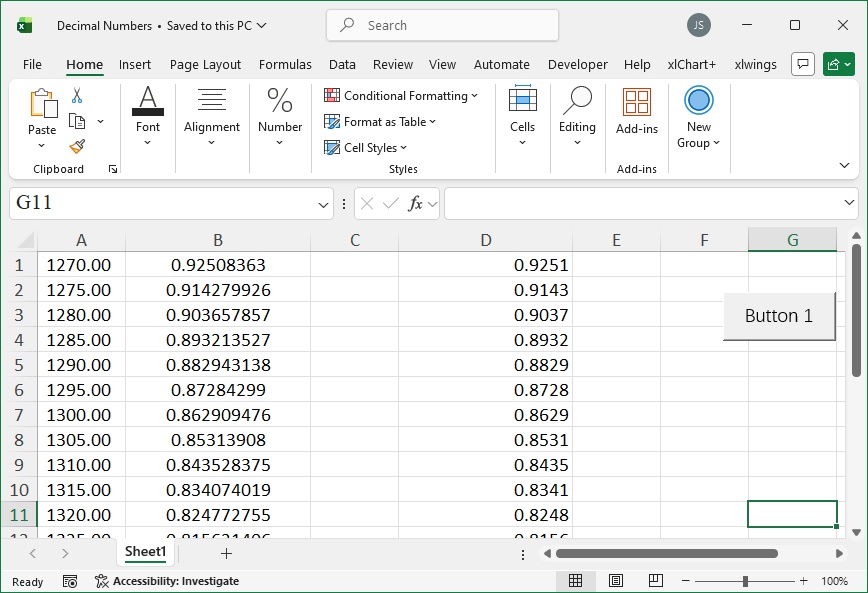
Figure 6-2
[Excel VBA] Use Format with "0.0000". Sample file: Samples\ch06\Excel VBA\Retain4Decimals.xlsm.
Sub Test()
    Dim intI As Integer, intRows As Integer
    Dim sngV As Single
    intRows = ActiveSheet.Range("B1").End(xlDown).Row
    For intI = 1 To intRows
        sngV = ActiveSheet.Cells(intI, 2).Value
        ActiveSheet.Cells(intI, 4).Value = Format(sngV, "0.0000")
    Next
End Sub
[Python] Use format with {:.4f}. Sample file: Samples\ch06\Python\Retain4Decimals.xlsx, script sam06-02.py.
import xlwings as xw
from xlwings.constants import Direction
import os
root = os.getcwd()
app = xw.App(visible=True, add_book=False)
bk = app.books.open(root + r'\Retain4Decimals.xlsx', read_only=False)
sht = bk.sheets(1)
rows = sht.api.Range('B1').End(Direction.xlDown).Row
n = 0
for rng in sht.range('B1:B' + str(rows)):
    n += 1
    sht.cells(n, 4).value = '{:.4f}'.format(rng.value)